Bitrate vs. Resolution: Why Does My 4K Video Look Blurry?

You shoot a video in 4K, feeling pretty good about yourself. You upload it, watch it back, and think — wait, why does this look muddy? The footage looks soft, almost like someone smeared vaseline on the lens. You're not alone in this. A lot of you have asked about this exact problem, and the answer almost always comes down to two things: bitrate and resolution. They sound like they should be the same thing, but they're not even close.
Resolution tells you how many pixels are packed into your image. Bitrate tells you how much data is being used to describe those pixels every single second. Think of it like a painting. Resolution is the size of the canvas. Bitrate is how much paint you're allowed to use. A huge canvas with almost no paint? You get a blurry mess. That's your 4K video looking like it was shot through a foggy window.
This stuff matters a lot more than most people realize, especially if you're editing and exporting your own videos. Once I started paying attention to bitrate settings, my exports stopped looking like they'd been compressed into a zip file and forgotten about. The quality jump was immediate. So let's break this down properly, because once you understand what's actually happening under the hood, you'll never wonder why your 4K looks blurry again.
What resolution actually means (and what it doesn't)
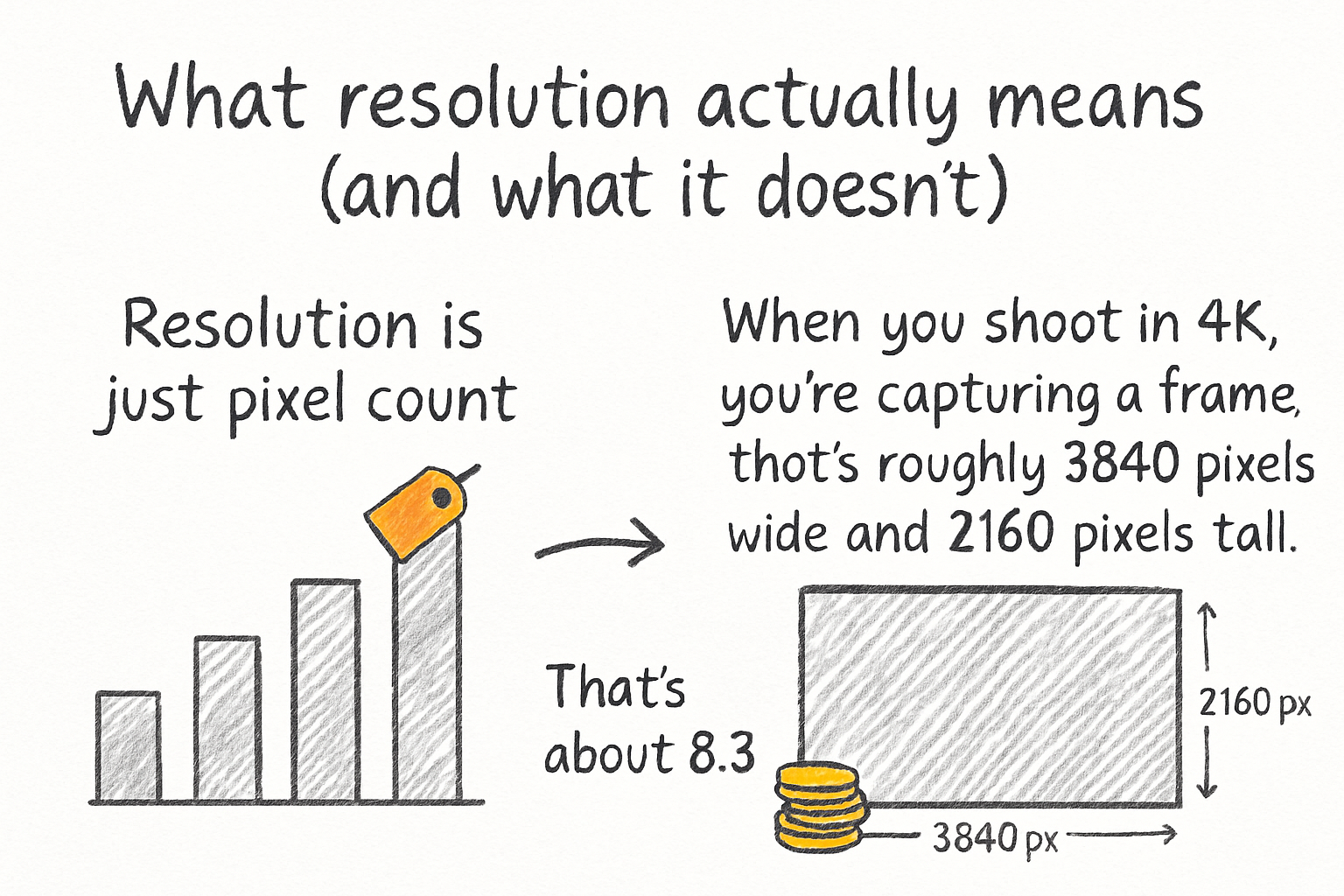
Resolution is just pixel count. When you shoot in 4K, you're capturing a frame that's roughly 3840 pixels wide and 2160 pixels tall. That's about 8.3 million pixels per frame. Full HD, or 1080p, gives you around 2 million pixels per frame. So 4K has four times the pixels of 1080p. Sounds like it should look four times better, right?
Here's the thing though. Pixels are only part of the story. Each pixel needs information to describe it — its color, its brightness, how it changes over time. If you squeeze all 8.3 million pixels through a tiny data pipe, you're going to lose a lot of that information. The codec that compresses your video has to start making decisions about what details to throw away. And it throws away a lot.
That's why a well-encoded 1080p video can sometimes look sharper and cleaner than a poorly encoded 4K video. Resolution without enough data to support it is like buying a mansion and leaving all the rooms empty. Technically impressive, practically disappointing.
This is also why platform compression hits 4K so hard. When you upload to YouTube or Instagram, they re-encode your video. If your bitrate was already low going in, that second round of compression makes things look even worse. You've given the algorithm almost nothing to work with.
What bitrate actually does to your video
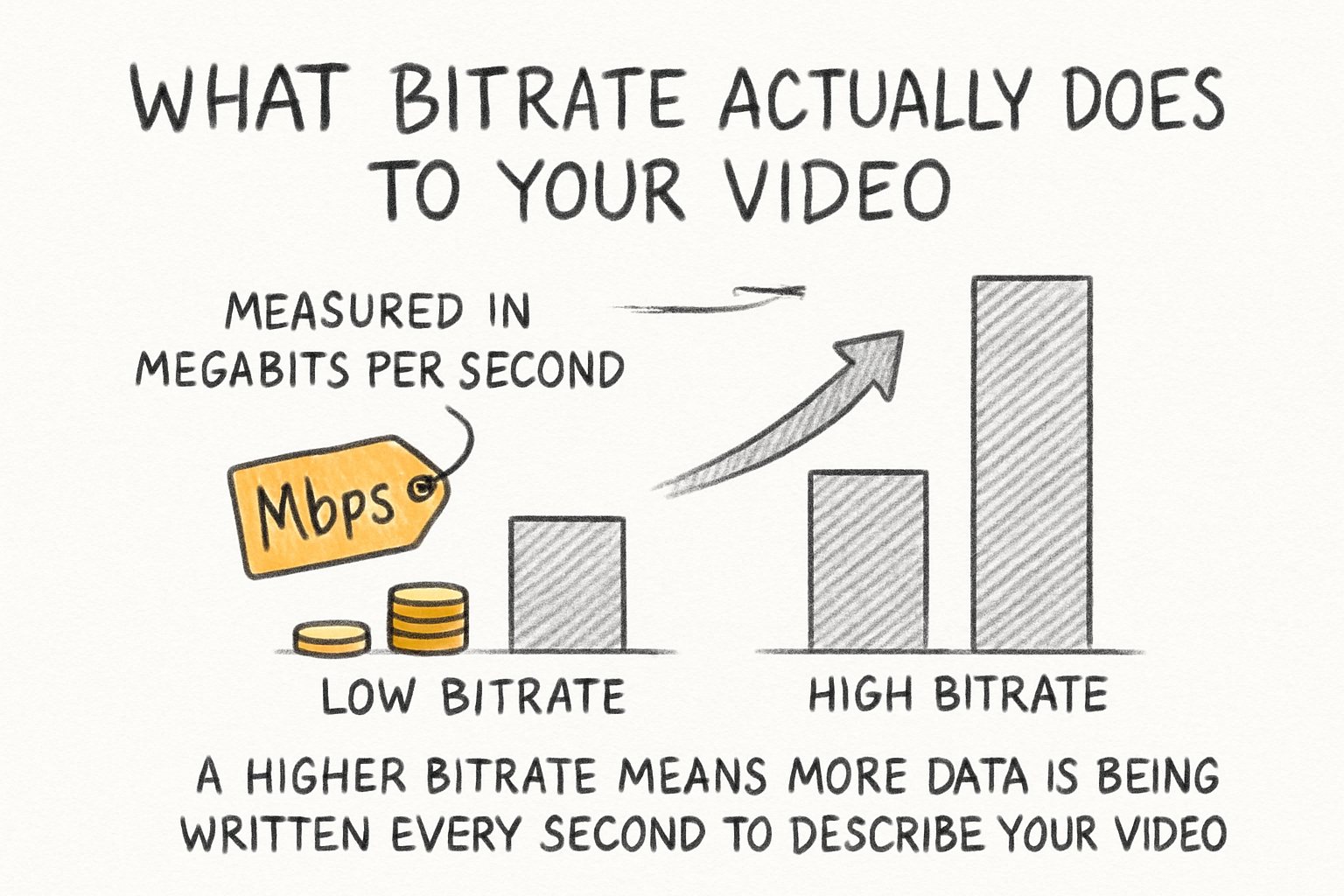
Bitrate is measured in megabits per second, usually written as Mbps. A higher bitrate means more data is being written every second to describe your video. For 4K footage, most cameras shoot somewhere between 50 Mbps and 400 Mbps depending on the camera and settings. Consumer cameras often sit on the lower end. Cinema cameras sit on the very high end, and some even shoot in RAW with bitrates in the thousands.
When your camera or your export settings use a low bitrate, the encoder compresses aggressively. It starts grouping similar pixels together and smoothing over fine details. Moving scenes get hit the hardest because there's so much changing frame to frame. You'll notice it in things like hair, fabric texture, fast movement, or anything with a lot of detail. It all turns into a kind of digital soup.
For exporting 4K video to YouTube, Google actually recommends a bitrate of around 35 to 45 Mbps for standard dynamic range content at 24 or 30 frames per second. For HDR content, they push it higher. A lot of creators never check these numbers and wonder why their content looks soft compared to bigger channels that clearly know what they're doing.
I personally think bitrate is the most overlooked setting in all of video production. People obsess over cameras and lenses and color grades — and those things matter, check out our piece on color correction vs. color grading if you want to go deep on that — but then they export at whatever the default settings are and wonder why everything looks off.
How to fix blurry 4K and get your exports looking sharp
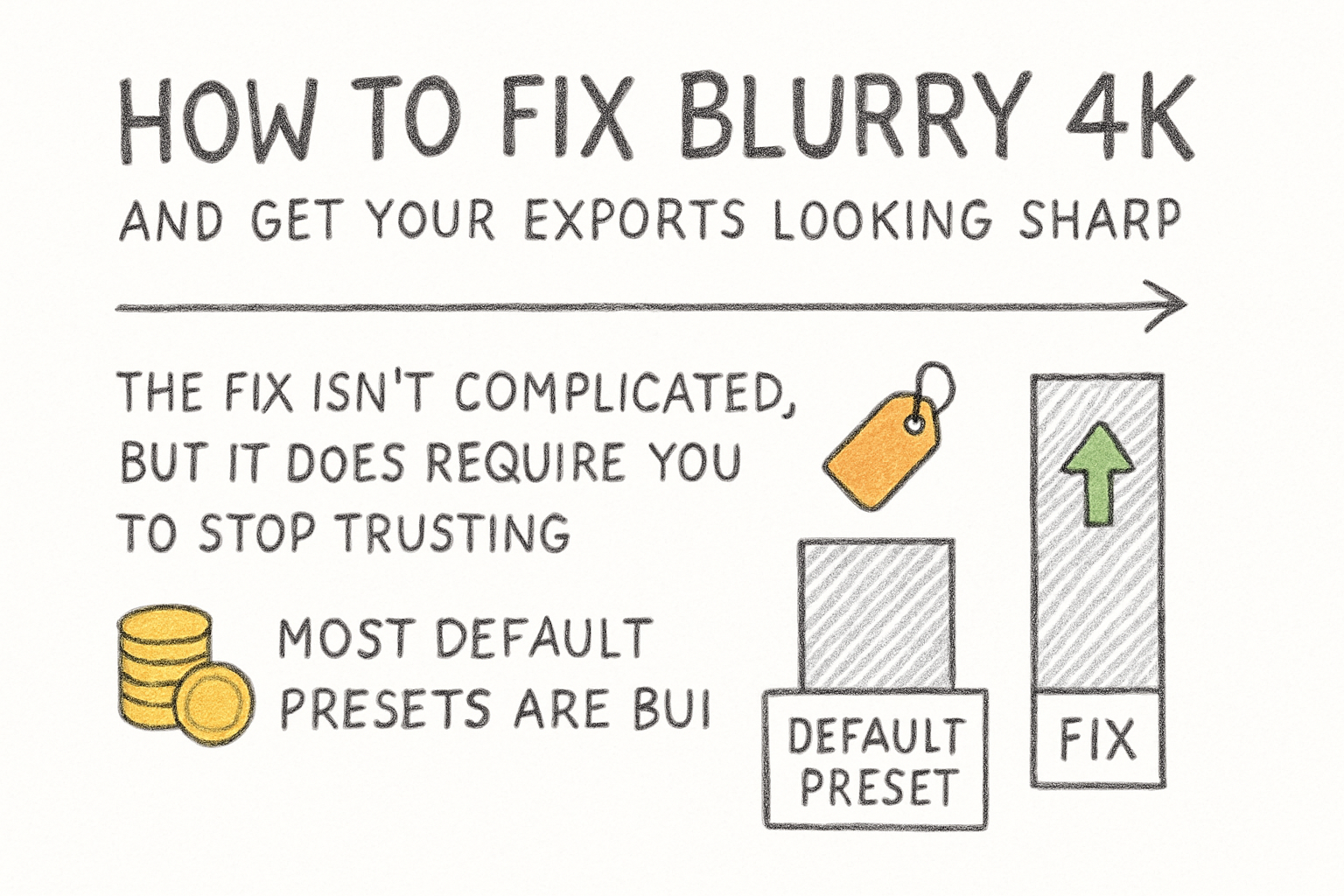
The fix isn't complicated, but it does require you to stop trusting the default export settings in your editing software. Most default presets are built for small file sizes, not quality. You need to go in and manually set your bitrate higher. For a 4K timeline at 24fps going to YouTube, aim for at least 40 Mbps using H.264, or around 20 Mbps if you're using H.265 since it's more efficient. H.265 gives you similar quality at roughly half the file size.
You also want to make sure your export resolution matches your timeline resolution. If you shot 4K but edited on a 1080p timeline, you're throwing away half the detail before the export even starts. Keep your sequence settings at 4K all the way through if you want a 4K final product. Sounds obvious, but a surprising number of people miss this step.
Another thing that kills quality is encoding with a variable bitrate set too low. Most editors let you choose between constant bitrate and variable bitrate. Variable bitrate is usually better because it gives more data to complex scenes and less to simple ones. But if you cap the maximum too low, it still falls apart on fast-moving or detailed footage. Set your max bitrate at least 1.5 times your target bitrate to give the encoder room to breathe.
Finally, think about what happens after your video leaves your hands. Platforms re-compress everything. Uploading a high-bitrate master file gives the platform's compression algorithm better source material to work with. It's the same idea as cooking with fresh ingredients versus frozen ones. The end result reflects what you put in. If you want to make your content look as sharp and professional as possible, understanding bitrate is just as important as understanding the visual side of your work, which is also why things like making digital video look like film are worth exploring once your technical foundation is solid.
Ready to take the next step?
Now you know why your 4K video looks blurry, and more importantly, you know how to fix it. It's not your camera. It's not your lens. It's the data behind the pixels. Drop a comment below and tell me what bitrate you've been exporting at — I'd love to hear how big the gap is for some of you. And if you want a video editor that actually makes this stuff easier without burying you in confusing settings, check out Cliptude. It's built for creators who want professional results without spending hours fighting their software.