
How to Get Sound on a Screen Recording

You hit record, walk through your whole screen tutorial, and then play it back only to find out the audio is completely missing. No system sounds, no voice, nothing. It's one of the most frustrating things that can happen when you're trying to make a recording, and it happens to a lot of people. The good news is that it's almost always fixable once you know where to look.
Screen recording audio can fail for a few different reasons. Sometimes the settings are just off by default. Sometimes the wrong input is selected. Sometimes the app you're using has a quirk that requires an extra step. Whatever the cause, this guide walks you through how to get sound working on your screen recordings across different devices and tools so you don't have to waste another take.
A lot of you have asked about this exact issue, and honestly, the first time it happened to me I spent way too long digging through settings menus before I finally found the one checkbox I had missed. So let's save you that headache.
Why your screen recording has no sound
Before you can fix the problem, it helps to understand what's actually going wrong. Screen recorders can capture two types of audio: system audio, which is the sound coming out of your computer like music or video playback, and microphone audio, which is your voice. Most recording tools treat these as separate sources, and if neither one is enabled before you start recording, you end up with silence.
On Windows, the built-in Xbox Game Bar sometimes defaults to recording only gameplay audio and skips system sounds or mic input unless you specifically turn them on in the settings. On Mac, system audio capture is actually blocked at the operating system level by default, which is why QuickTime Player alone can't record it without a third-party tool like BlackHole or Soundflower installed. This is a common surprise for Mac users who expect everything to just work out of the box.
Mobile devices have their own quirks too. iPhones running iOS 11 or later have a built-in screen recorder, but microphone audio is off unless you long-press the record button and flip the mic toggle. Android behaves differently depending on the manufacturer and Android version, but most have a similar toggle buried in the recording options.
The main takeaway here is that silence in your recording is almost always a settings issue, not a hardware failure. Once you know which setting controls which audio source, it gets much easier to troubleshoot.
How to enable audio on different devices and tools
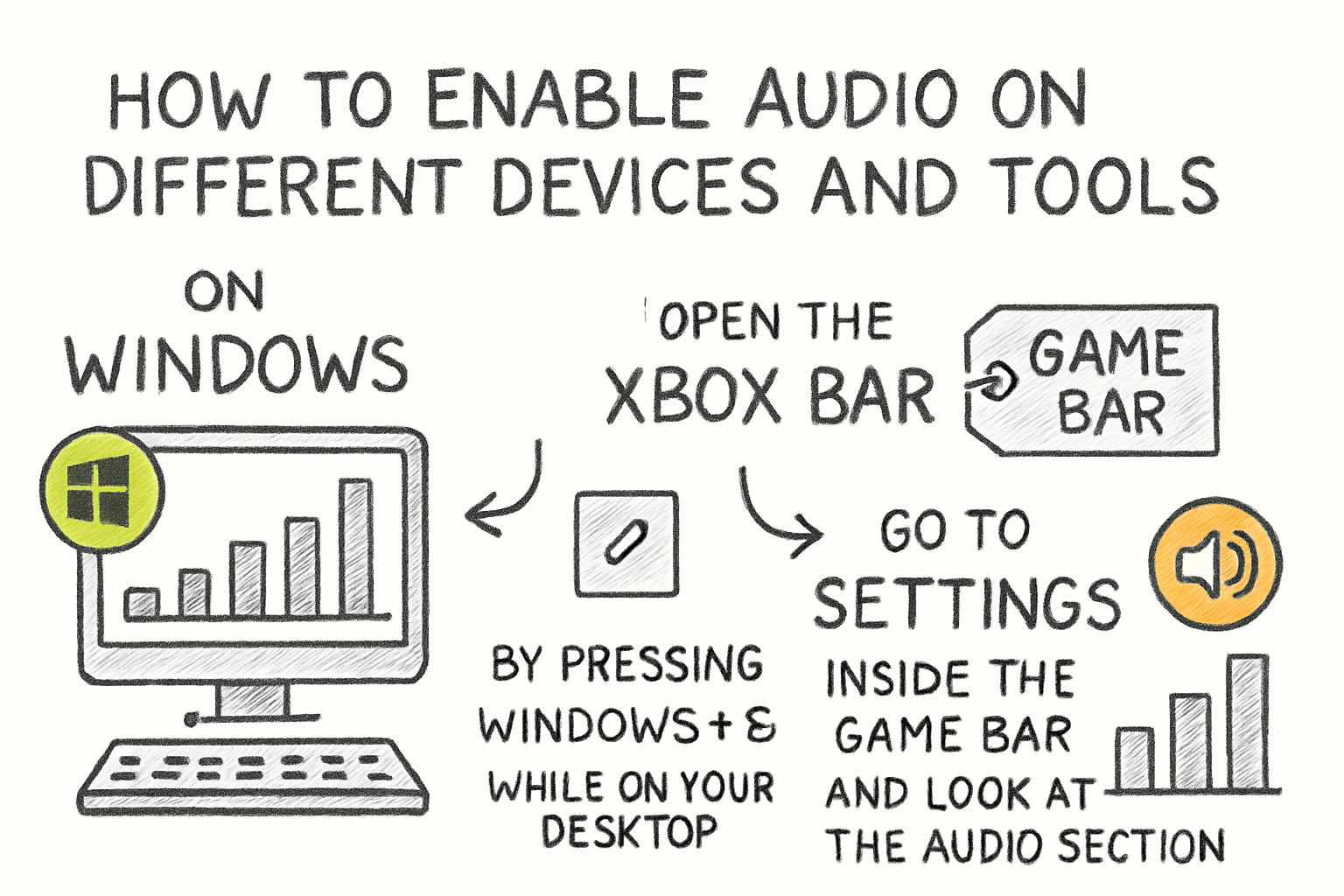
On Windows, open the Xbox Game Bar by pressing Windows + G while on your desktop. Go to Settings inside the Game Bar and look at the Audio section. You can choose which devices to capture and make sure both your microphone and your system audio are toggled on. If you're using OBS Studio instead, you'll see an Audio Mixer at the bottom of the screen. Check that your Desktop Audio and Mic inputs are active and not muted. OBS is one of the more reliable free options because it gives you full control over every audio source.
On Mac, open QuickTime Player and go to File, then New Screen Recording. Click the small dropdown arrow next to the record button. You'll see an option to select your microphone there. However, if you want to record system audio on a Mac, you do need to install a virtual audio driver like BlackHole first. Once it's installed, you can set it as your input source in QuickTime and route system audio through it. It sounds more complicated than it is, and the setup only takes a few minutes.
For iPhone users, swipe into your Control Center and long-press the screen recording icon. A small menu will pop up with a microphone button at the bottom. Tap it to turn the mic on before you start. For Android, open the built-in screen recorder from your notification panel or quick settings, and look for an audio toggle that lets you choose between device audio, microphone, or both before you start the recording.
If you're using a dedicated app like Loom, Camtasia, or Screencast-O-Matic, always check the app's own audio settings panel before recording. These apps usually have their own audio configuration that's separate from your system settings, and missing that step is a very common source of silent recordings.
What to do if the audio is still not working
If you've checked all the settings and your screen recording is still coming out silent, the problem might be at the system level. On Windows, right-click the speaker icon in your taskbar and open Sound Settings. Under the Input section, make sure the right microphone is set as the default device. Under Recording Devices, check that your microphone is enabled and not showing as disabled. Sometimes a Windows update quietly changes these defaults without telling you.
On Mac, go to System Settings, then Sound, and check both the Output and Input tabs. Make sure your output is set to your speakers or headphones and that your input is set to your microphone or virtual audio driver if you installed one. It's also worth checking your Privacy and Security settings to make sure the screen recording app you're using has permission to access your microphone. macOS is strict about app permissions and will block audio capture silently if access hasn't been granted.
Another thing worth trying is recording a short test clip in a completely different app. If your mic works in one app but not another, the issue is likely an app permission or setting rather than a hardware problem. And if you're dealing with a recording where the video came out fine but the audio is missing or needs to be edited out entirely, our guide on how to get audio off a video walks you through that process.
I personally think the biggest mistake people make is assuming their screen recorder is set up correctly just because it worked once before. Settings get reset after updates, permissions get revoked, and default devices change. A quick check of your audio settings before every recording session saves a lot of frustration in the long run.
Ready to take the next step?
Getting your screen recording audio right isn't complicated once you know the steps, but it does take a bit of setup the first time. Whether you're on Windows, Mac, iPhone, or Android, there's always a way to get both your voice and your system sounds captured cleanly. If you found this helpful or have a specific setup you've been struggling with, drop a comment below and let us know. And if you want a straightforward tool to trim, edit, or clean up your recordings after you've got the audio working, check out Cliptude and see what it can do for you.



