How to Decrease GIF File Size Without Losing Quality

GIFs are everywhere. They pop up in chat apps, social media posts, marketing emails, and blog articles every single day. But here's the thing nobody warns you about: GIF files can get really big, really fast. A few seconds of animation can balloon into a 10MB file that takes forever to load and clogs up inboxes or slow connections.
So what do you do when your GIF looks great but weighs too much? You shrink it down without wrecking how it looks. That sounds tricky, but it's actually pretty doable once you know what controls the file size in the first place. A lot of you have asked about this exact problem, especially after sharing GIFs in emails or embedding them on websites, so let's break it all down in plain terms.
The good news is that you don't need expensive software or a degree in graphic design to get this right. A handful of simple tricks can cut your GIF's file size by 50% or more while keeping it looking clean and smooth. Let's walk through what actually works.
Why GIF files get so large in the first place
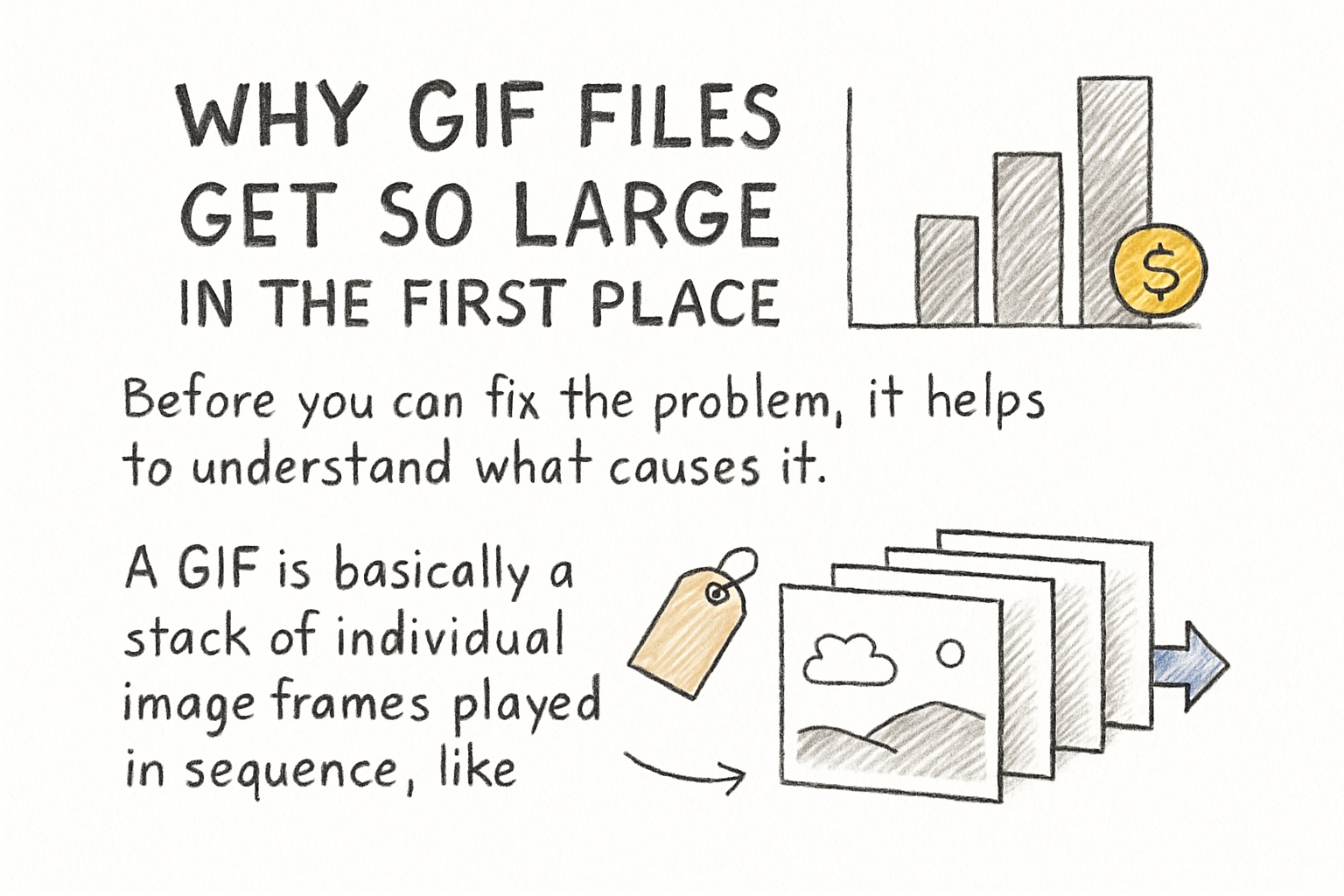
Before you can fix the problem, it helps to understand what causes it. A GIF is basically a stack of individual image frames played in sequence, like a flip book. Each frame holds color information for every pixel on screen. The more frames you have, the more data gets packed into the file. Add a high frame rate and a large canvas size, and your file size shoots up fast.
GIFs also use a color format that supports up to 256 colors per frame. That might not sound like a lot, but most simple animations don't even need that many. When a GIF uses the full 256-color palette even for something with mostly flat colors, it wastes space on color data that doesn't really help the image look any better.
Frame dimensions play a huge role too. A GIF that's 800 pixels wide holds a lot more data per frame than one that's 400 pixels wide. If you're embedding a GIF in a sidebar or a chat window, you probably don't need it to be massive. Shrinking the canvas is one of the fastest ways to drop file size without any visible quality loss at normal viewing sizes.
I personally think most people overlook frame rate as a size culprit. Dropping from 25 frames per second to 15 frames per second barely looks different in most animations, but it can cut your file size by a third. That's a win you can grab without touching anything else.
Practical ways to reduce GIF file size
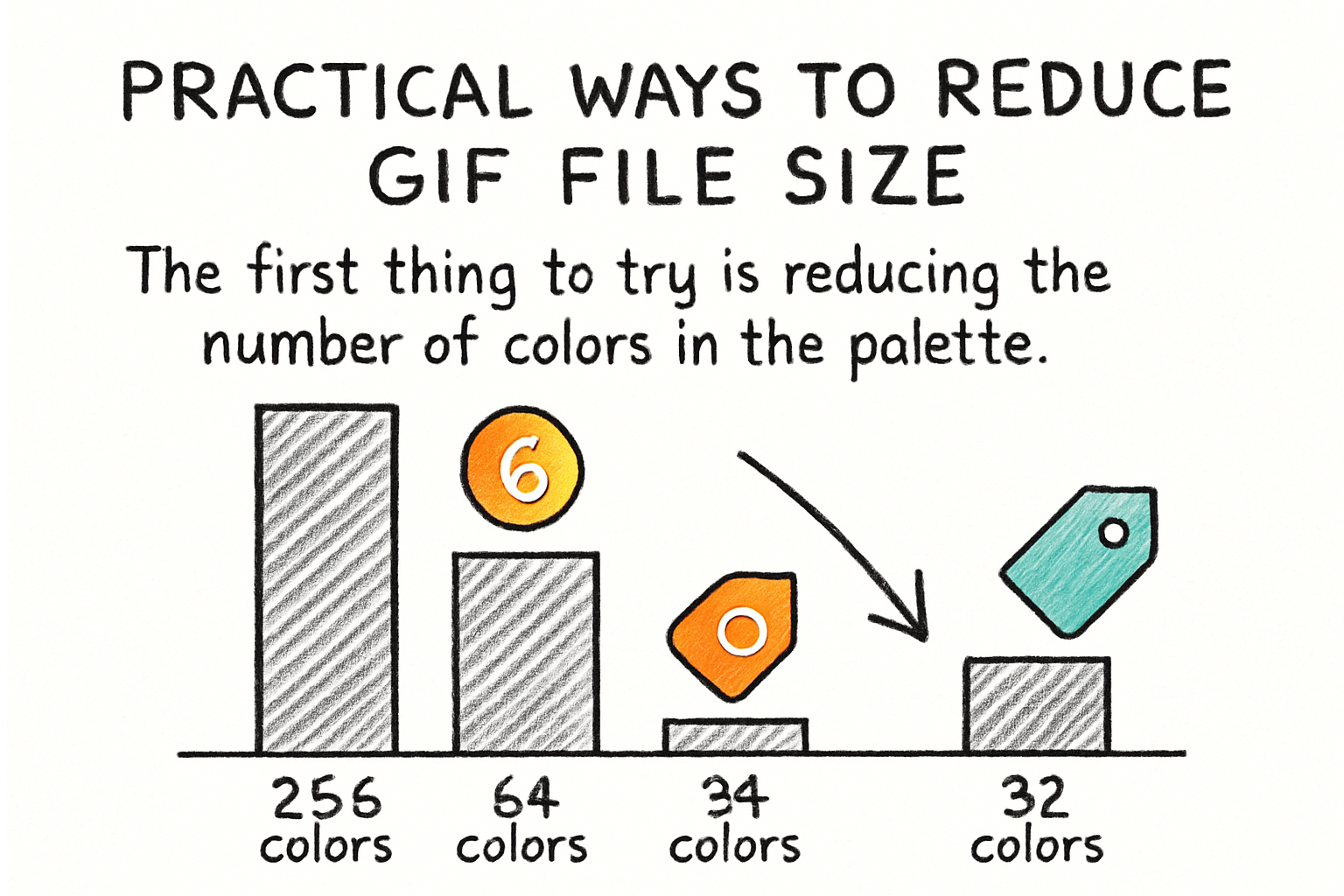
The first thing to try is reducing the number of colors in the palette. Most GIF editors let you set the palette to 64 or even 32 colors instead of the default 256. For animations with simple shapes, text, or limited color schemes, this change alone can shrink the file noticeably. Always preview the result before saving because going too low can cause banding or visible color loss.
Next, cut unnecessary frames. If your GIF has a long pause or a repeated section, trim it. Some tools let you remove duplicate frames automatically, which is great for animations where parts of the screen don't change between frames. Fewer frames means a smaller file, plain and simple. Think of it like we talked about in our article on best video compression tools and methods where cutting redundant data is always the first step.
Resizing the canvas is another quick fix. If the GIF will be displayed at 300 pixels wide, there's no reason to export it at 600 pixels wide. Scale it down to match the actual display size. Most free tools like Ezgif, GIMP, or Photoshop let you resize before exporting. This step alone often cuts the file size in half.
Finally, try increasing the frame delay slightly. A frame delay of 0.05 seconds gives you 20 frames per second. Bumping that to 0.08 seconds drops you to about 12 frames per second. For most looping GIFs, this change is nearly invisible to viewers but makes a real difference in file weight. I remember the first time I tried this on a loading spinner I made for a project years ago and was shocked that it went from 4MB down to under 1MB just by slowing the frame rate a little.
Tools you can use right now
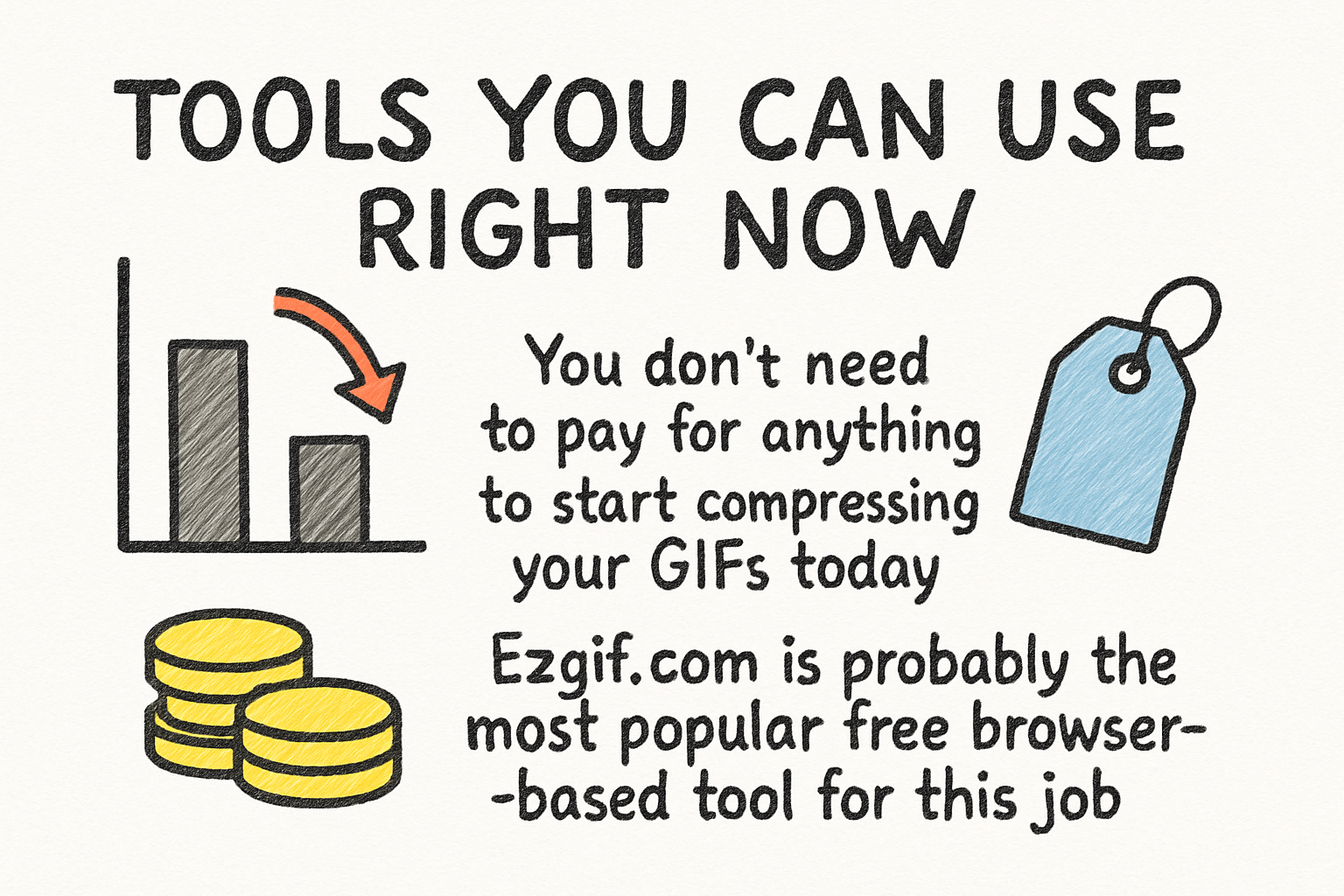
You don't need to pay for anything to start compressing your GIFs today. Ezgif.com is probably the most popular free browser-based tool for this job. You upload your GIF, pick your options like color reduction, frame removal, and resize, and download the result. It's fast, it's free, and it works on any device with a browser.
GIMP is a free desktop app that gives you more control. You can open a GIF, edit individual frames, reduce the palette manually, and export with custom settings. It takes a little more time to learn, but the control you get is worth it if you're working with GIFs regularly. Photoshop does the same thing if you have access to it through an Adobe subscription.
For people who create GIFs from video clips, tools like ScreenToGif and LICEcap let you set compression options right at the recording stage. That means you're building a smaller file from the start instead of trying to fix a bloated one after the fact. If you're turning screen recordings or short video clips into GIFs, it's worth checking out how to handle the source footage properly before the conversion step.
Online tools like Squoosh and Compressor.io also handle GIF files in addition to regular images. They're worth bookmarking because they're lightweight and don't require any sign-up. No matter which tool you pick, always compare the before and after side by side at the intended display size. What looks bad at full resolution often looks perfectly fine when scaled down in a browser or app.
Ready to take the next step?
Shrinking a GIF file doesn't have to mean sacrificing the thing that made it worth creating in the first place. With the right settings and a little patience, you can hit a file size that loads fast and still looks sharp. If you've got questions about specific tools or you're running into issues with a particular GIF, drop a comment below and let's figure it out together. And if you're working with video content alongside your GIFs, check out Cliptude for a clean, simple way to edit and share your videos without the usual frustration.