Best Video Compression Tools and Methods in 2026

Video files are huge. If you've ever tried to send a clip to a friend or upload a video to YouTube only to watch the progress bar crawl for twenty minutes, you know exactly what I mean. In 2026, we're shooting in 4K and even 8K, which makes the problem even worse. The good news is that compression tools have gotten really good, and there are more options than ever to shrink your files without turning them into a blurry mess.
A lot of you have asked about this exact topic, so I wanted to put together a proper guide covering the best tools and methods available right now. Whether you're a content creator, a freelancer sending project files, or just someone who wants to free up storage space, this post has something for you. We'll cover the top software options, the methods that actually work, and a few things to watch out for so you don't accidentally wreck your video quality.
The best video compression tools in 2026
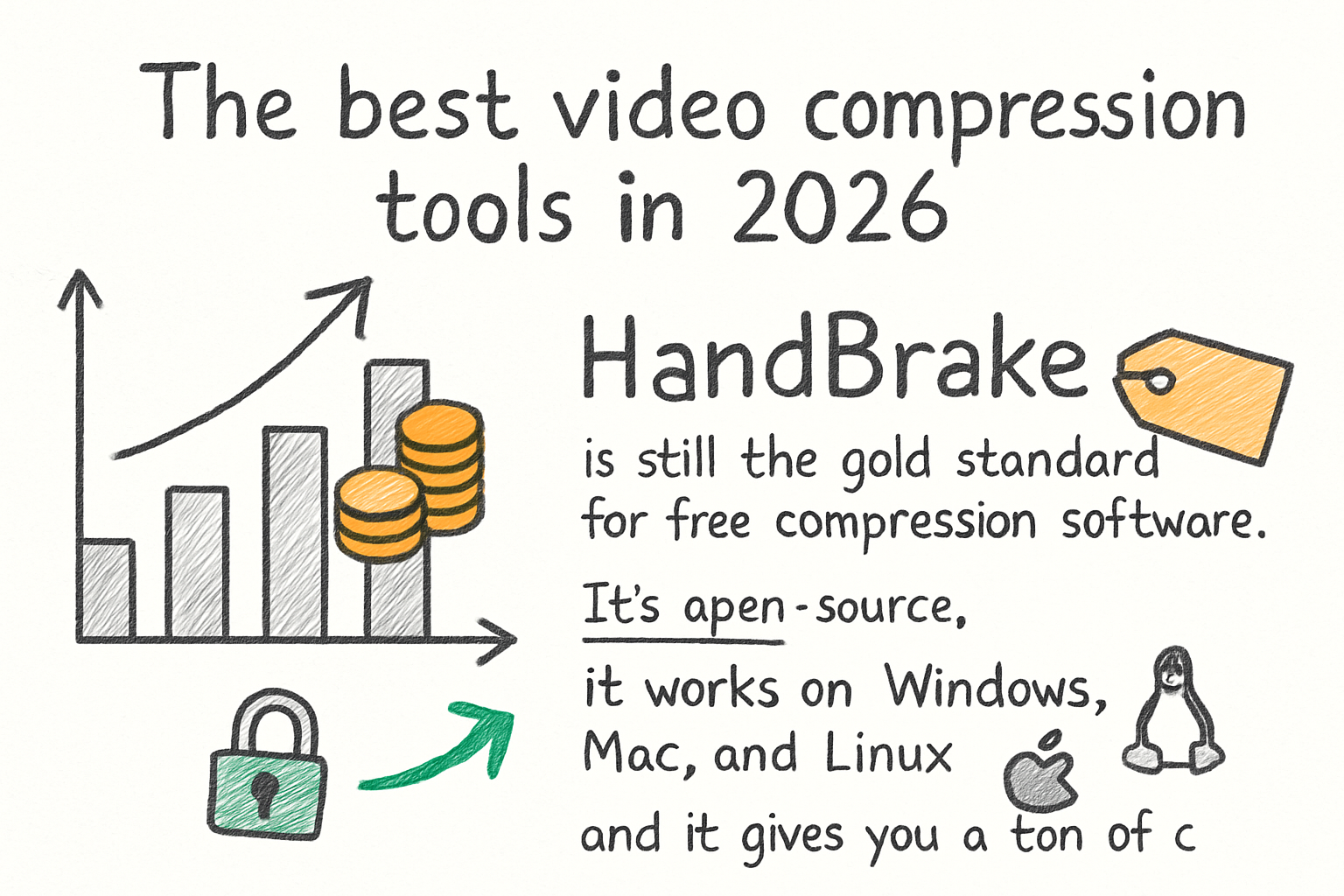
HandBrake is still the gold standard for free compression software. It's open-source, it works on Windows, Mac, and Linux, and it gives you a ton of control over your output settings. You can choose your codec, adjust your bitrate, and even set up batch encoding for multiple files at once. It's not the prettiest app in the world, but it gets the job done without charging you anything.
For Mac users, Cliptude has become a go-to option because it keeps things simple. You don't need to understand every technical setting to get a great result. If you want a deeper look at Mac-specific workflows, our complete guide to compressing video on Mac walks through everything step by step. It's worth bookmarking if you shoot on an iPhone or work with Apple formats regularly.
On the professional side, Adobe Media Encoder is still widely used in production workflows. It integrates directly with Premiere Pro and After Effects, which makes it convenient for editors who are already in that ecosystem. The downside is that it's part of a paid subscription, so it's not for everyone. DaVinci Resolve also has solid built-in compression and export options, and the free version is surprisingly capable.
AI-powered tools are also making a real impact now. Apps like Topaz Video AI and some newer cloud-based platforms can compress video while using smart algorithms to preserve sharpness and color detail. They take longer to process, but the quality difference compared to basic compression is noticeable, especially at lower bitrates.
Methods that actually reduce file size without killing quality
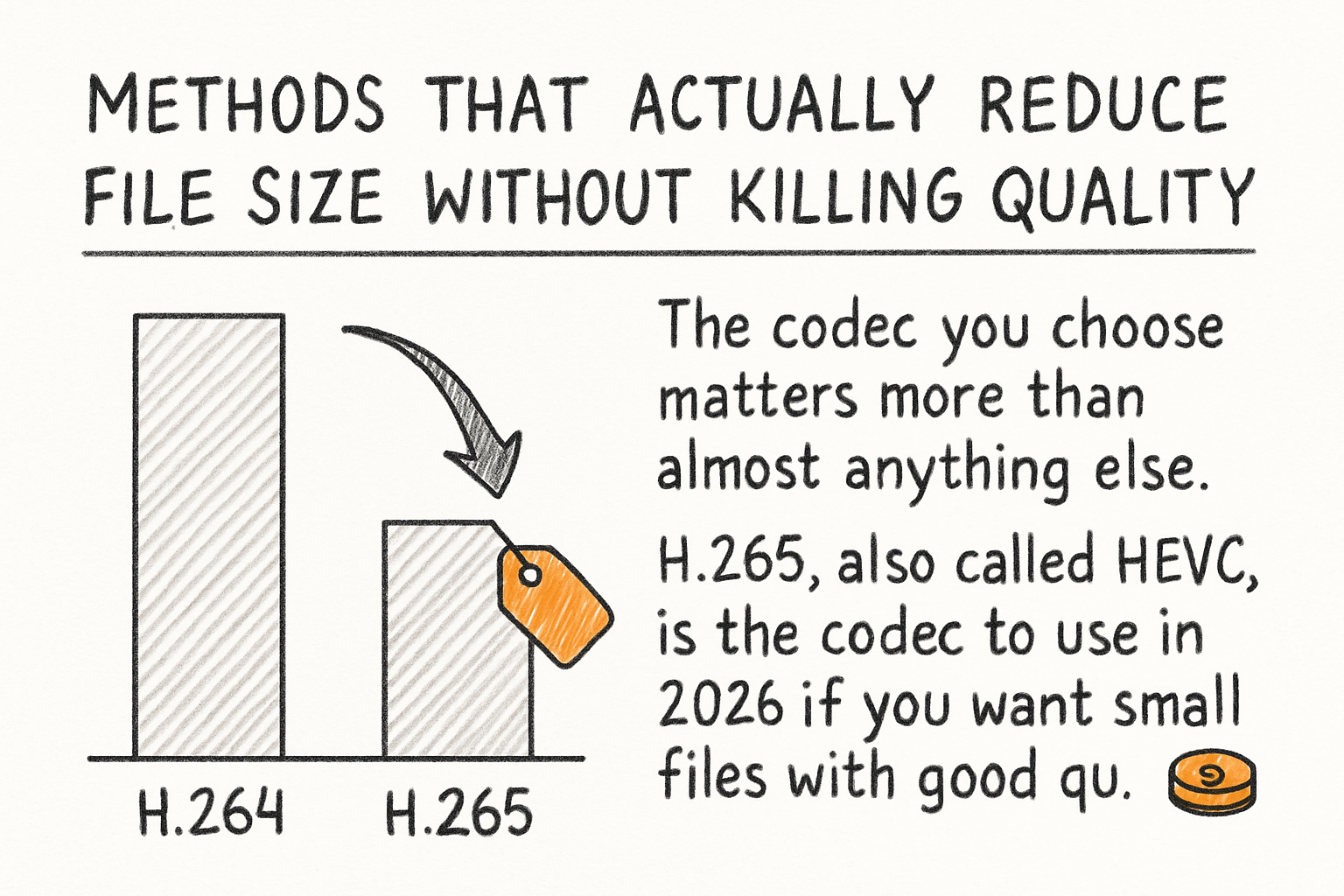
The codec you choose matters more than almost anything else. H.265, also called HEVC, is the codec to use in 2026 if you want small files with good quality. It's roughly twice as efficient as the older H.264 standard, meaning you get the same visual quality at about half the file size. AV1 is another strong option, especially for web video, and it's royalty-free, which is why platforms like YouTube have been pushing it hard.
Bitrate is the other big lever you can pull. Think of bitrate as how much data your video uses per second. Higher bitrate means better quality and bigger files. Lower bitrate means smaller files but more compression artifacts, like that blocky look you sometimes see in online videos. For most content, a variable bitrate setting works better than a fixed one because it uses more data during complex scenes and less during simple ones.
Resolution is something people often overlook. If your final video is going on a phone screen or in a small player window, you don't need 4K. Dropping from 4K to 1080p can cut your file size by more than half. Same goes for frame rate. If you shot at 60fps but the content doesn't need smooth motion, exporting at 30fps saves a lot of space. I personally think people obsess too much over resolution and not enough over codec choice, which honestly has a bigger impact on the final result.
For MP4 files specifically, there's a clean process that doesn't require much technical knowledge. Our post on how to compress an MP4 video covers the quickest methods if you just want to get it done fast. And if you're working with MOV files from a Mac or camera, you can learn how to compress a MOV file without losing quality to avoid the common pitfalls people run into with that format.
What to watch out for when compressing video
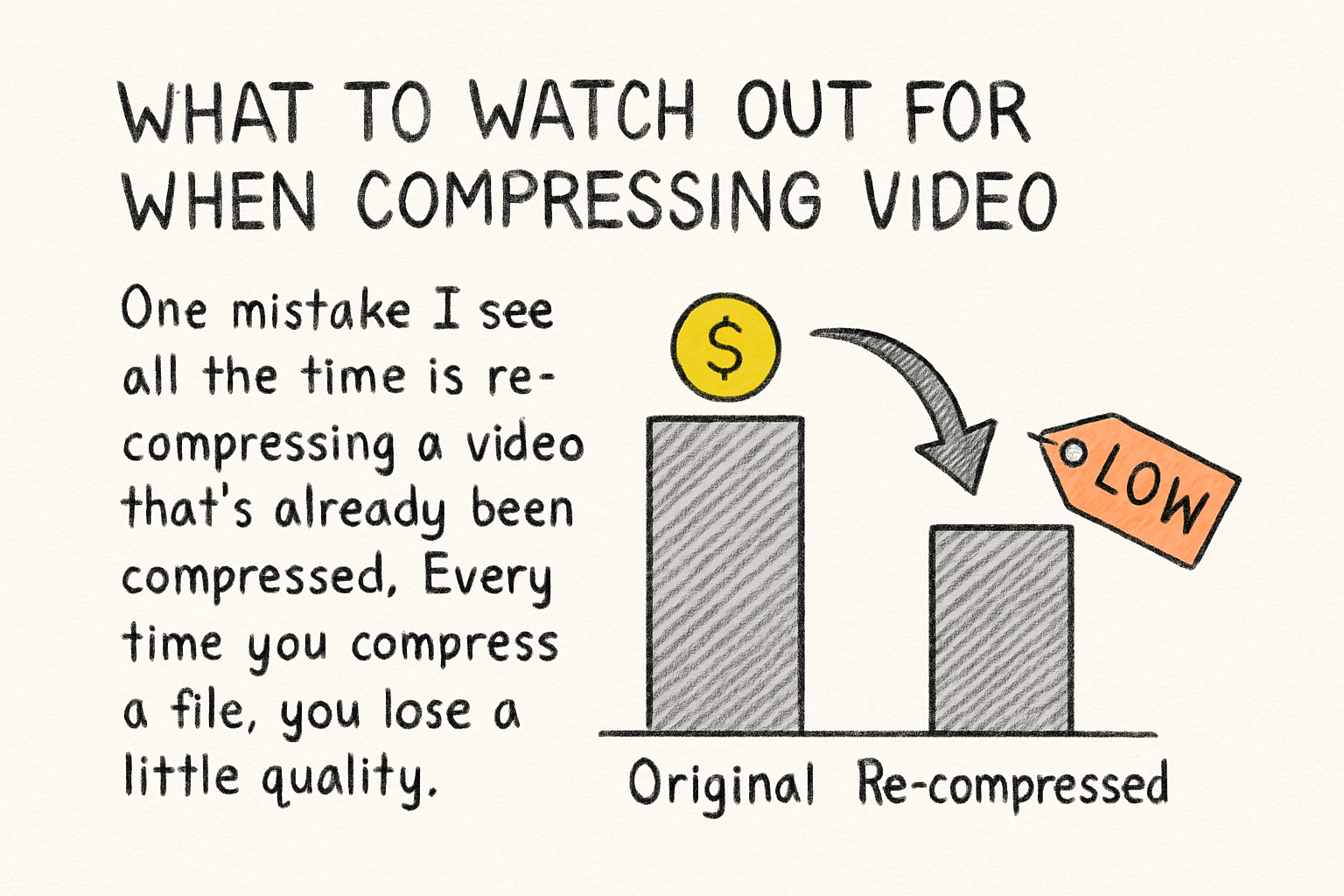
One mistake I see all the time is re-compressing a video that's already been compressed. Every time you compress a file, you lose a little quality. If you start with a file that was already exported from an editor and then compress it again, you're compressing the compression, which makes artifacts stack up fast. Always try to work from the original, highest-quality source file you have.
I remember once sending a client a compressed version of a brand video only to realize later that I'd accidentally started from an already-compressed preview file instead of the master. The result looked fine on my laptop screen but fell apart on their conference room TV. It was an embarrassing lesson, but I haven't made that mistake since. Always check your source before you start.
Audio is another thing that often gets sacrificed by accident during compression. A lot of default settings will compress your audio aggressively, and that can make voices sound tinny or music sound muddy. Set your audio bitrate manually if the tool allows it. For most video content, 192 kbps AAC audio is a solid baseline that keeps quality up without adding much to the file size.
Finally, think about where the video is going before you compress it. YouTube, Instagram, and Vimeo all have their own preferred formats and specs. Compressing for the wrong platform can mean your video gets re-compressed by the platform anyway, which doubles your quality loss. If you're uploading to YouTube, check out our guide on the best format for YouTube videos in 2026 before you export so you get it right the first time.
Ready to take the next step?
Video compression doesn't have to be complicated. Once you understand a few key settings and pick the right tool for your needs, the whole process gets a lot faster and less stressful. If you've got questions or a tool you love that I didn't mention, drop a comment below. And if you want a simple, no-fuss way to compress and work with your videos, check out Cliptude and see how it handles your files.