How to Get Audio Off a Video (Fast and Easy Methods)

You've got a video, and you just need the audio from it. Maybe it's a recorded interview, a song from a clip someone sent you, or narration you want to reuse in another project. Whatever the reason, pulling audio off a video is one of those things that sounds complicated but really isn't. You don't need a film degree or expensive software to get it done.
A lot of you have asked about this exact topic, so I figured it was time to break it down in a way that actually makes sense. Whether you're working on a desktop, a phone, or trying to do it online without downloading anything, there's a method for you. The trick is knowing which tool fits your situation so you're not wasting time clicking through menus that go nowhere.
This guide covers the fastest and easiest ways to get audio off a video, from free online tools to built-in software you probably already have on your computer. By the end, you'll know exactly what to do and why each method works the way it does.
Why you'd want to extract audio from a video
Before jumping into the how, it helps to understand the why. When a video file exists, the audio and the video track are packaged together inside a container, kind of like a ZIP file holding two different things at once. Extracting audio just means pulling one of those things out without touching the other.
People do this for all kinds of reasons. Podcasters often record video interviews and then want a clean audio file to upload to their podcast. Content creators pull voiceovers from old footage to reuse in new projects. Musicians sometimes record performance videos and later want the audio to mix or share separately. If you've ever read our guide on how to do a voice over, you know how useful it can be to work with isolated audio tracks.
Some people also extract audio to create transcripts, captions, or subtitles. Once you have a standalone audio file, it's a lot easier to run it through transcription software or to manually type it out. And sometimes you just want to listen to something without watching the video. Simple as that.
The good news is that none of these use cases require anything fancy. Most of the tools that can do this are free, and some of them take less than a minute to use once you know what you're doing.
The best methods for getting audio off a video
The most popular way to extract audio is using a free online converter. Sites like Online Audio Converter, Convertio, and CloudConvert let you upload a video file and choose an output format like MP3 or WAV. You just upload the file, pick your settings, hit convert, and download the result. It's fast and requires zero installation. The downside is that large files can take a while to upload, and you're trusting a third-party site with your content.
If you'd rather keep things on your own computer, VLC Media Player is a solid option. You've probably used VLC to watch videos before, but a lot of people don't know it can also convert and extract audio. You go to Media, then Convert or Save, add your video file, choose Audio as the output profile, and let it run. It's free, it's open source, and it works on Windows and Mac. I personally think VLC is one of the most underrated tools out there because it does so much more than people realize.
For Mac users, there's actually a built-in option hiding in plain sight. QuickTime Player can open a video and export it as an audio file. You go to File, then Export As, and select Audio Only. That's really it. No extra software, no accounts, no fuss. It saves as an M4A file, which works well for most purposes.
On Windows, a free program called Audacity can handle this too. It's mainly an audio editor, but you can import a video file and then export just the audio track in whatever format you want. It takes a few more steps than some other methods, but it gives you more control over the final output, like being able to trim the audio or adjust levels before you save it.
Tips to get better results when extracting audio
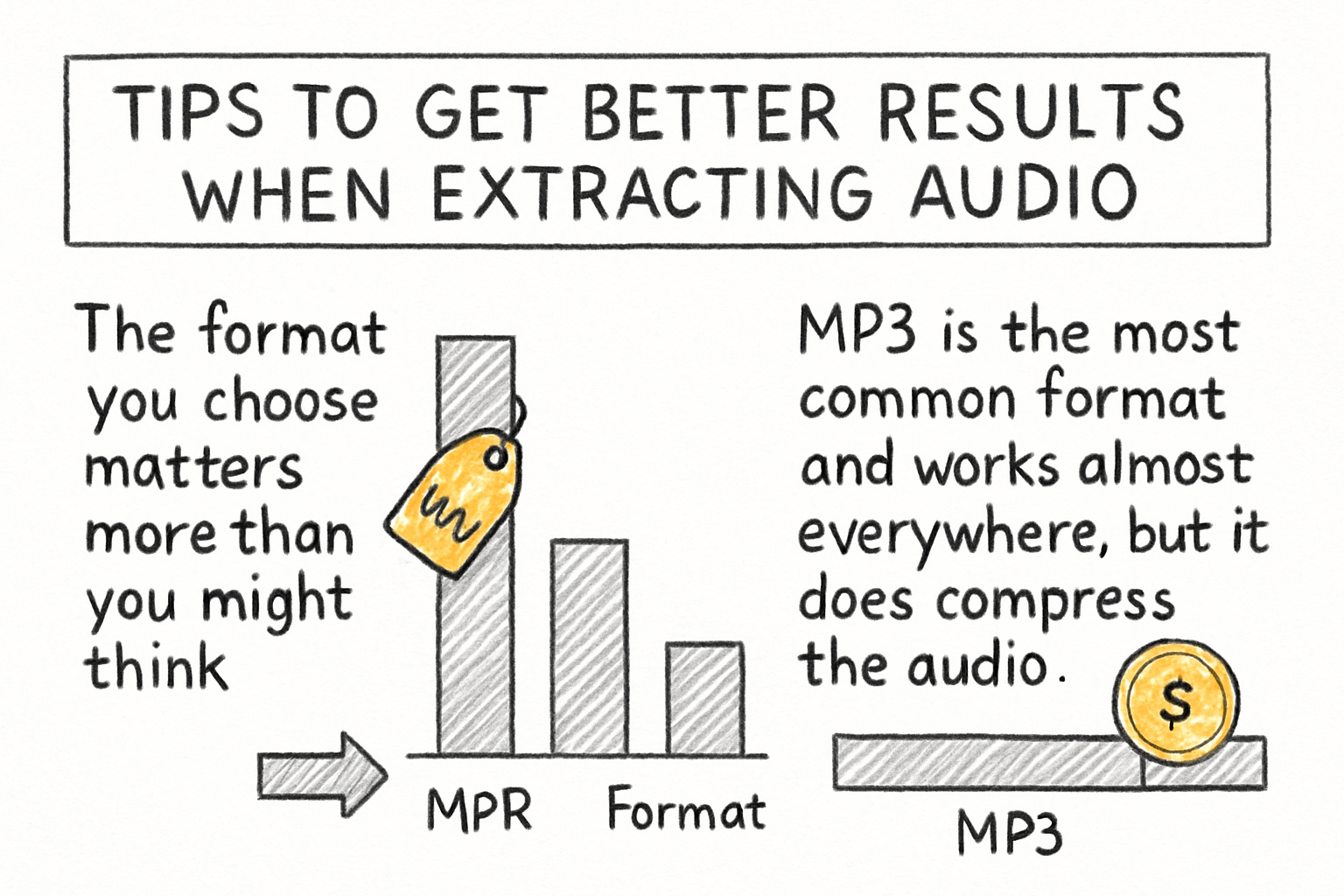
The format you choose matters more than you might think. MP3 is the most common format and works almost everywhere, but it does compress the audio, which means a small drop in quality. WAV files are uncompressed and sound better, but they're much larger. For podcasts, voice recordings, and general use, MP3 is fine. For music or anything where audio quality really counts, go with WAV or FLAC if your tool supports it.
Some tools also let you set the bitrate when exporting. Higher bitrate means better sound quality and a larger file. A bitrate of 192 kbps is usually a good middle ground for spoken audio. If you're extracting music or something with a lot of detail, 320 kbps is worth the extra file size. Most online converters will let you pick this in the settings before you download.
One thing worth noting: if the original video has poor audio quality, extracting it won't fix that. The output can only be as good as what's already in the file. If the original recording had background noise, echo, or distortion, you'll need an audio editing tool to clean it up after extraction. Audacity is great for this, and it's free. There are also paid tools like Adobe Audition if you want more advanced options.
Once you have your audio file, there are a lot of things you can do with it. You could use it to write a transcript, which ties in nicely with what we covered in our step-by-step guide on writing a transcript. Or you could add it as a voice track in a new video project. The audio file becomes a flexible asset you can use however you need.
Ready to take the next step?
Getting audio off a video really comes down to picking the right tool for your setup and knowing what format you need at the end. Whether you go the quick online route or use something already on your computer, the process is shorter than most people expect the first time they try it. If you've got a method that worked well for you, drop it in the comments below because I'd love to hear what other people are using. And if you want to do more with your video and audio projects, check out Cliptude to see how it can help you create and manage your content all in one place.