
How to Flip a Video: Step-by-Step Guide for Any Device

You recorded a great video, but something's off. Maybe you filmed it holding your phone the wrong way, or the text in the background is showing up as a mirror image. Whatever the reason, you need to flip it. The good news is that flipping a video is one of the easiest edits you can make, and you don't need fancy software to do it.
A lot of you have asked about this exact problem, especially after filming clips on your phone and realizing the footage looks backwards when you upload it to social media. It's a super common issue, and it has a quick fix no matter what device you're using.
In this guide, we'll walk through exactly how to flip a video on your phone, your computer, and using online tools. We'll cover both horizontal flipping (left to right) and vertical flipping (upside down), so you'll be covered no matter what your footage looks like.
How to flip a video on your phone
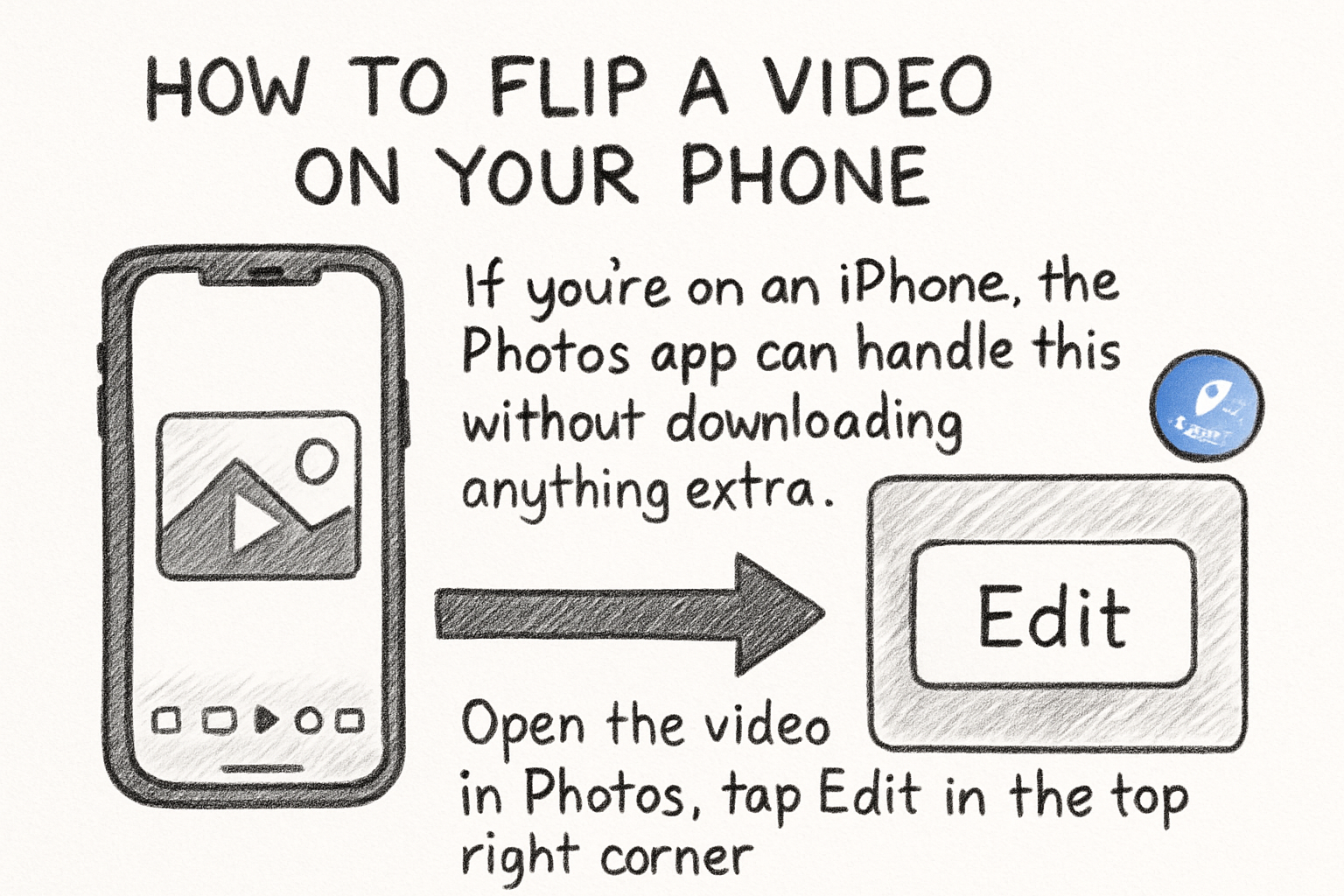
If you're on an iPhone, the Photos app can handle this without downloading anything extra. Open the video in Photos, tap Edit in the top right corner, then tap the crop icon at the bottom. You'll see a flip icon in the top left corner of the screen. Tap it once to flip your video horizontally. When you're done, hit Done and your video saves automatically.
Android is a little different depending on what phone you have. On most Android devices, you can open Google Photos, tap Edit, then choose the crop and rotate option. There's usually a flip button there too. If your phone's built-in editor doesn't have it, Google Photos works on almost every Android device and it's free.
For quick edits on either platform, CapCut is worth mentioning. It's a free app that gives you more control. Once you import your clip, look for the Edit menu, then find the Rotate option. Most apps that include rotate will also include flip, and CapCut labels it clearly. I personally think CapCut is one of the most underrated free mobile editors out there because it handles stuff like this in just a few taps.
One thing to watch out for: some apps only let you rotate a video (turn it 90 degrees), not flip it (mirror it). Those are two different things. Rotating changes the orientation. Flipping creates a mirror image. Make sure the app you choose specifically mentions flipping or mirroring so you get the right result.
How to flip a video on a computer
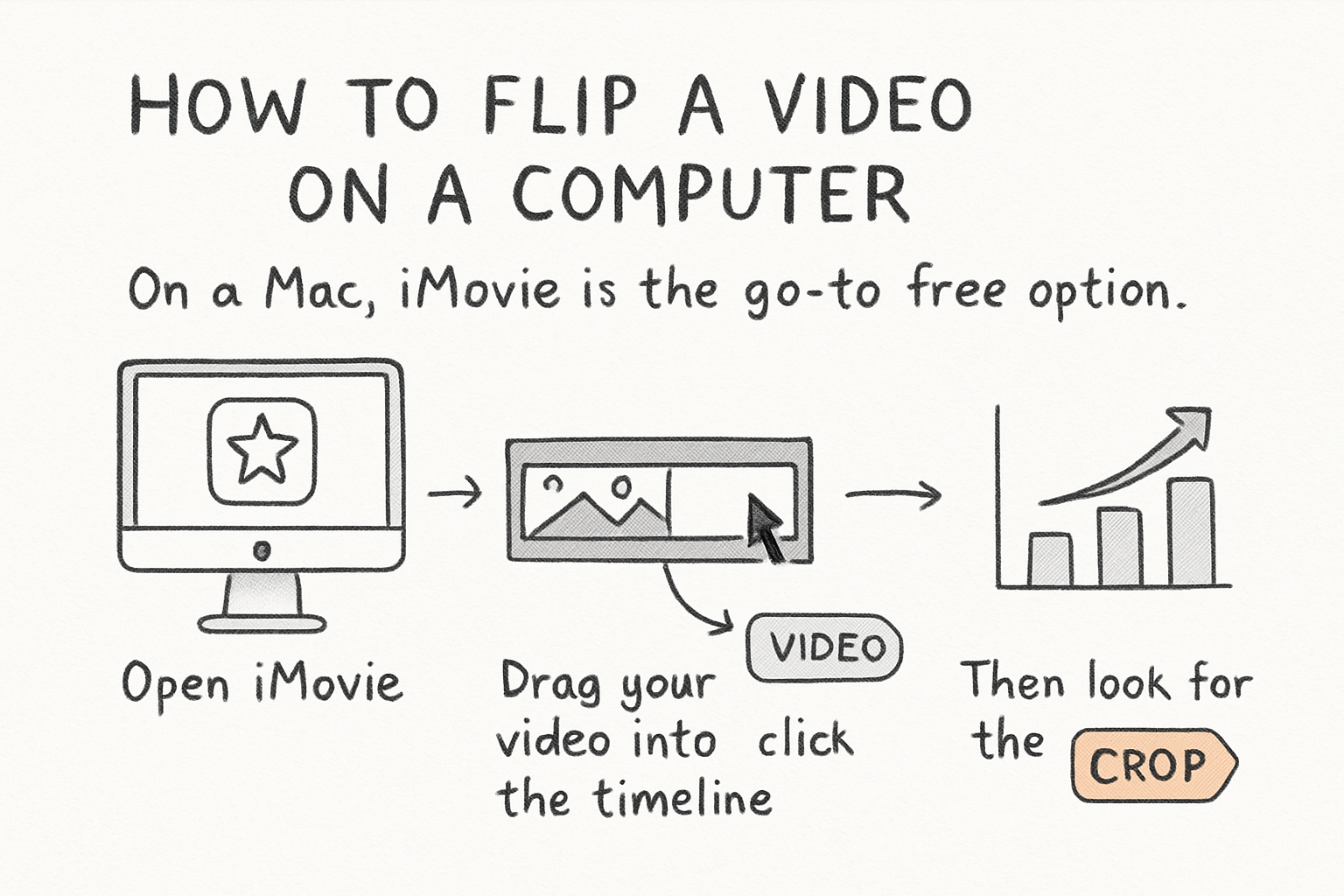
On a Mac, iMovie is the go-to free option. Open iMovie, drag your video into the timeline, and click on the clip to select it. Then look for the cropping and rotation tools in the top right panel. You'll see icons for rotating left and right. To flip the video horizontally, click the icon that looks like two arrows pointing in opposite directions. It's labeled Flip Horizontal. For vertical flipping, there's a separate button right next to it.
I remember the first time I tried flipping a video on my old MacBook. I spent way too long looking through menus before realizing the flip button was just sitting right there in plain sight the whole time. Once you see it, you can't unsee it.
On Windows, the Photos app also works, but the flip feature is a bit buried. Open your video in Photos, click Edit and Create, then choose Edit. From there, go to the Crop and Rotate tab. You should see a Flip option at the top of the panel. Click it and you're done. If you want more control over your edits, our complete guide to video editing effects for beginners covers a lot of the tools you'll need beyond just flipping.
For people who use video editing software like DaVinci Resolve or Premiere Pro, the process takes a few more steps but gives you much more precision. In DaVinci Resolve, right-click your clip in the timeline, go to Change Clip Speed, and look for the flip options under the Inspector panel. In Premiere Pro, go to Effect Controls and find the Motion settings. You can set the Scale Width to a negative number, like -100, which flips the video horizontally without touching anything else.
How to flip a video using online tools
Not everyone wants to download software just to flip one clip. Online tools are a solid option when you're in a hurry. Clideo, Kapwing, and VEED.io are three of the most popular ones. They all work roughly the same way: you upload your video, find the flip option, make your edit, and download the result. Most of them are free for short clips, though longer videos may require a paid plan.
The process on most of these sites is pretty simple. On Kapwing, for example, you upload your file, click on the clip in the editor, then look for the Edit or Transform menu on the right side. You'll see options to flip horizontally or flip vertically. Make your choice and then export the file. The whole thing usually takes under two minutes.
One thing worth knowing when you're working with online tools: file size matters. If your video is large, it can take a while to upload and process. If you're running into slow upload times, it helps to compress your video first. You can check out quick and easy methods to compress an MP4 video before you start working with any online editor.
Also keep privacy in mind when using free online tools. You're uploading your video to someone else's server. For most casual clips that's totally fine, but if your video has sensitive content, you might want to stick with offline software. Most reputable online editors delete your files after a short period, but it's always good to check their privacy policy before uploading anything personal.
Ready to take the next step?
Flipping a video really doesn't have to be complicated. Whether you're on your phone, your laptop, or just using a browser-based tool, there's an easy way to get it done in minutes. If you've got a method that's worked well for you, or you ran into trouble with one of the steps above, drop a comment and let us know. And if you're looking for a fast, browser-based way to edit your videos without downloading anything, check out Cliptude and see what it can do for your workflow.



