How to create YouTube videos with AI for free

Making YouTube videos used to mean buying a camera, renting a studio, or at least knowing how to edit footage for hours on end. That's not true anymore. AI tools have changed the game so much that you can now build a full video from scratch without ever turning on a camera or recording your voice. And the best part? A lot of this is available for free.
A lot of you have asked about this exact topic, and I get why. Whether you want to start a faceless channel, test a video idea without spending money, or just speed up your production process, free AI tools make it possible to do all of that right now. You don't need a big budget. You just need to know where to start.
This post is going to walk you through the whole process, from writing your script to publishing something that actually looks good. I'll cover the tools that work, the steps to follow, and a few things I wish I'd known earlier. Let's get into it.
Start with a script and a solid idea
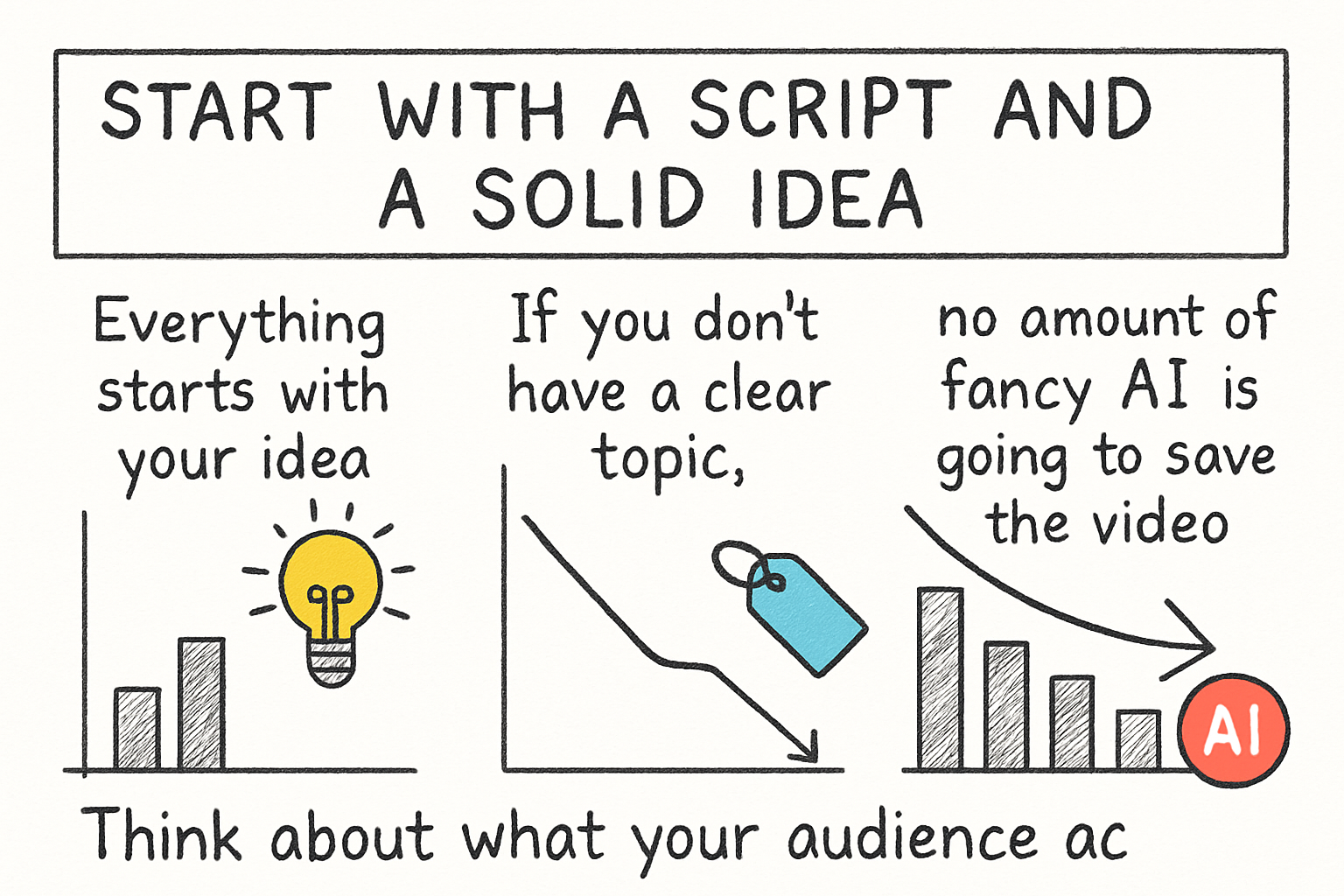
Everything starts with your idea. If you don't have a clear topic, no amount of fancy AI is going to save the video. Think about what your audience actually wants to watch, not just what you feel like talking about. A good hook in the first few seconds is what keeps people from clicking away, so your script matters more than most people realize.
Free tools like ChatGPT or Google Gemini can help you write a full video script in minutes. You give them a topic, some context about your audience, and a rough length, and they'll produce a working draft. It won't be perfect right away, but it gives you something solid to edit. If you want more tailored options for video content specifically, our breakdown of AI tools to write engaging scripts for YouTube covers the best ones in detail.
Once your script is ready, think about structure. Short YouTube videos do well with a simple format: hook, main content, call to action. Longer videos need chapter breaks or the audience drops off. AI can help you outline this too. Just paste your draft back into the chat and ask it to reorganize it for better retention.
I personally think the script step is where most people rush and then wonder why their video underperforms. Spend real time here. Even if the AI does the heavy lifting, read it out loud, cut anything boring, and make sure it sounds like you.
Turn your script into a real video
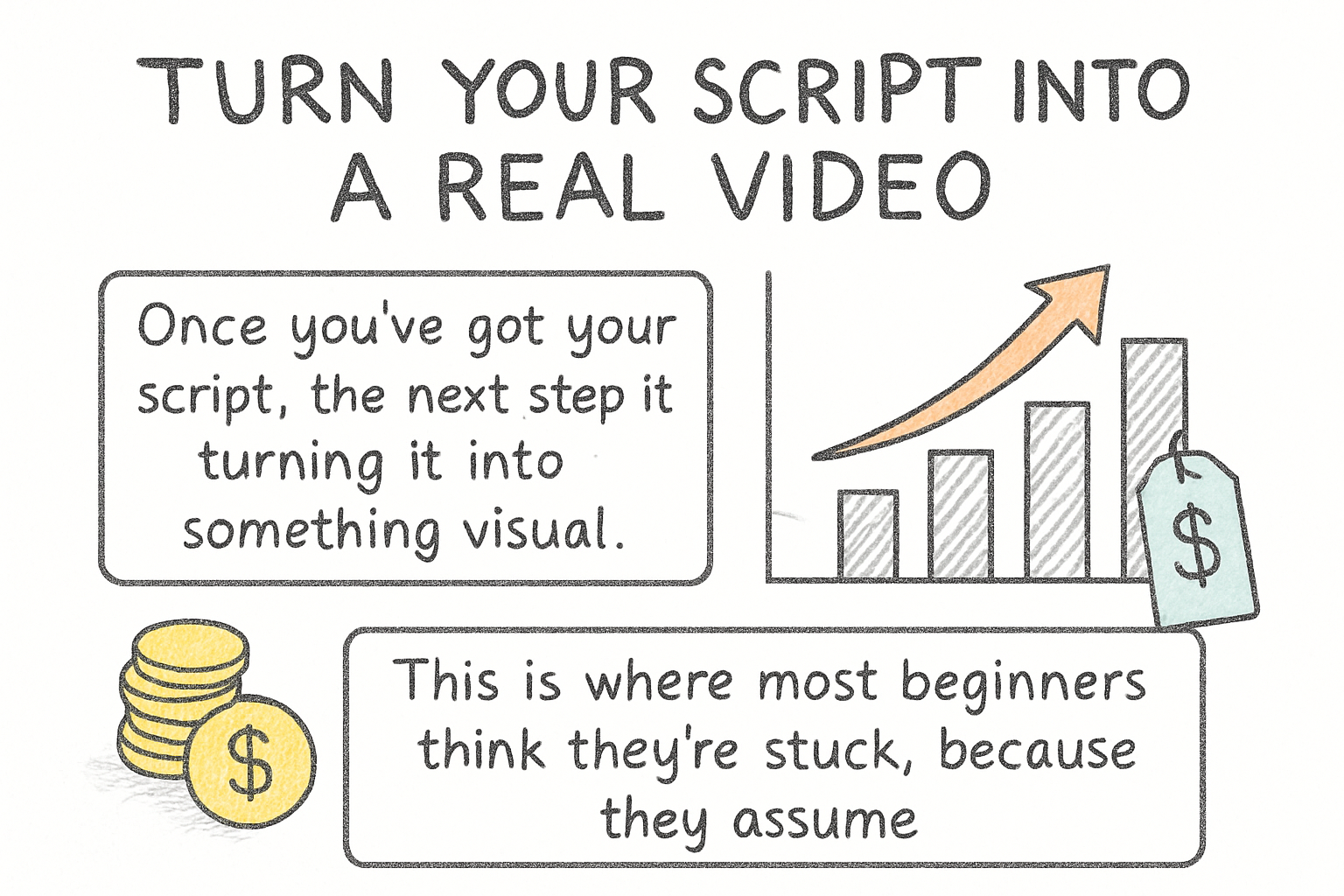
Once you've got your script, the next step is turning it into something visual. This is where most beginners think they're stuck, because they assume they need footage, a studio, or design skills. You don't. There are free AI video tools that take your script and generate a video with stock footage, transitions, and text overlays automatically.
Tools like Canva's free video editor, CapCut, and InVideo all have AI-assisted features that match footage to your script and assemble the video for you. If you're just starting out and feeling overwhelmed by all the options, the best AI video generators for beginners is a good place to see what's out there without getting lost.
For voiceovers, you don't have to record anything yourself. ElevenLabs has a free tier that lets you generate realistic AI voices. You paste in your script, pick a voice, and download the audio. It takes about two minutes. If you want to go a step further and use a voice that sounds like you, there's a great walkthrough on how to clone your own voice in ElevenLabs that I've linked here.
I remember the first time I tried this whole process. I was skeptical that a free tool could produce anything worth posting. But after about 45 minutes of tinkering, I had a three-minute video that looked cleaner than stuff I used to spend hours making. The free versions do have limits, like watermarks or capped export quality, but for testing ideas they work fine. Once you're serious, you can upgrade.
Edit, optimize, and actually get views
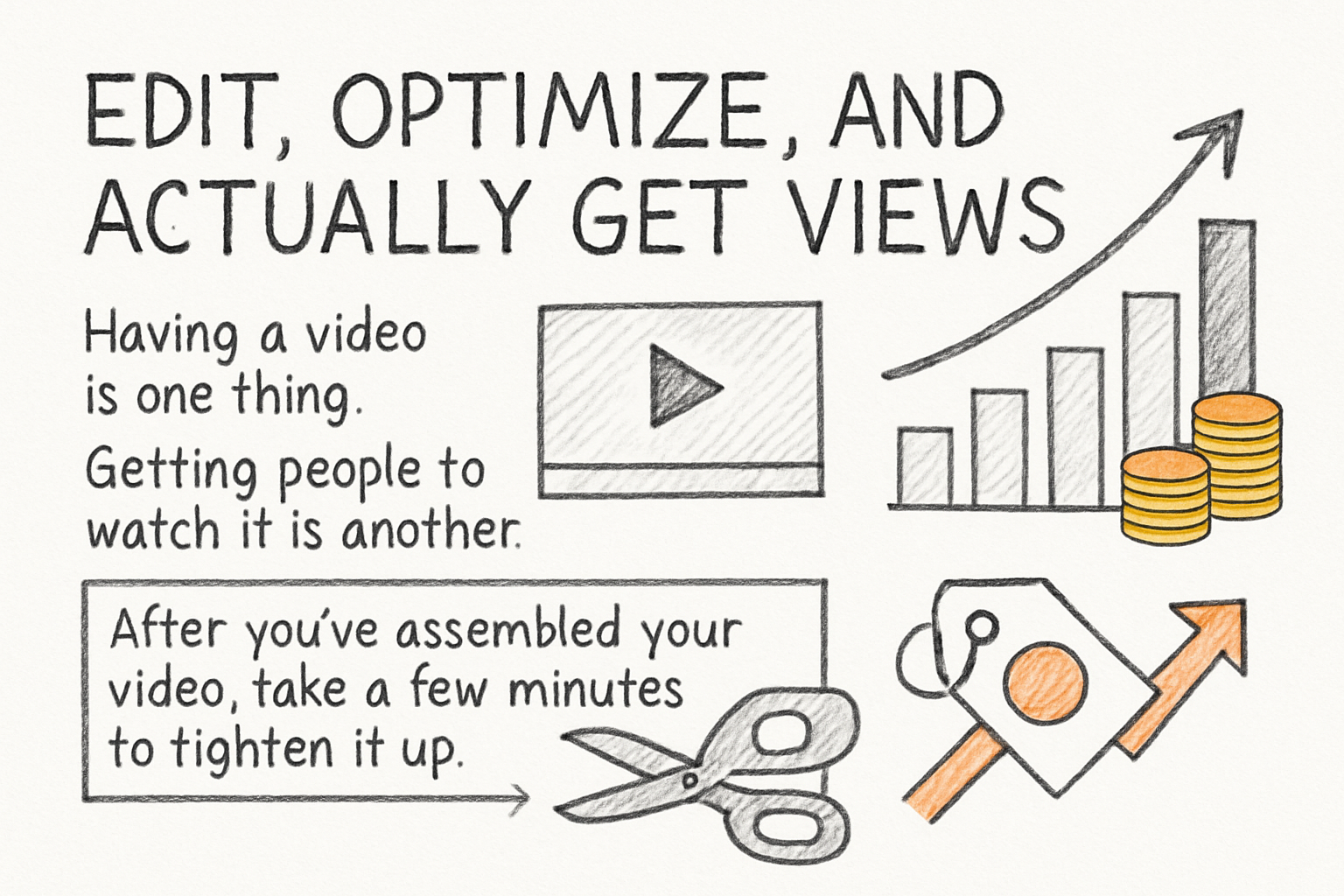
Having a video is one thing. Getting people to watch it is another. After you've assembled your video, take a few minutes to tighten it up. Cut any dead air, add captions if your tool supports it, and make sure the pacing feels right. AI editing tools can handle a lot of this automatically. If you want options that go beyond basic trimming, check out this list of AI services that automate video editing for YouTube that covers tools built specifically for this.
After editing comes optimization. Your title, thumbnail, and description have a huge impact on whether people click. Free tools like VidIQ and TubeBuddy have browser extensions with keyword suggestions. For titles specifically, learning how to write something clickable without being clickbait is its own skill. We covered this in an earlier post about how to optimize YouTube titles for more clicks, which is worth reading before you hit publish.
Thumbnails can also be made with AI now. Canva has an AI image generation tool, and tools like Adobe Firefly have free tiers too. You just need a clean image with readable text and a clear focal point. Keep it simple. Busy thumbnails tend to get ignored.
The last piece is consistency. One video won't build a channel. But if you use this free AI workflow to post even two or three videos a month, you'll start to see what resonates. For a more complete picture of how all these steps fit together end to end, the complete workflow for creating YouTube videos using only AI is one of the most useful resources I'd point you toward.
Ready to take the next step?
Creating YouTube videos with AI isn't some far-off thing anymore. It's something you can start doing today, for free, with tools that are easy to figure out even if you've never made a video before. If you've tried any of these tools or have questions about a specific step in the process, drop a comment below and let me know. And if you want a platform that brings a lot of this together in one place, go ahead and check out Cliptude to see what it can do for your channel.