How to Translate a Spanish Video to English

Maybe you found a Spanish YouTube video that looks really useful, but you don't speak Spanish. Or maybe a family member sent you a clip and you have no idea what anyone is saying. Whatever the reason, translating a Spanish video to English is something a lot of people need to do, and it's way easier than most people think. You don't need to hire a professional translator or spend a ton of money to get it done.
There are a few different ways to tackle this, and the best method really depends on what you need the final result to look like. Do you just want to understand what's being said? Do you need subtitles? Or do you want the whole video re-dubbed in English? Each of those goals takes a slightly different path. This post walks through all of them so you can pick the one that fits your situation.
A lot of you have asked about this topic in the comments, so let's get into it. Whether you're a student, a content creator, or just someone trying to understand a video your cousin sent from Mexico City, this guide has you covered.
Start with a transcript of the Spanish audio
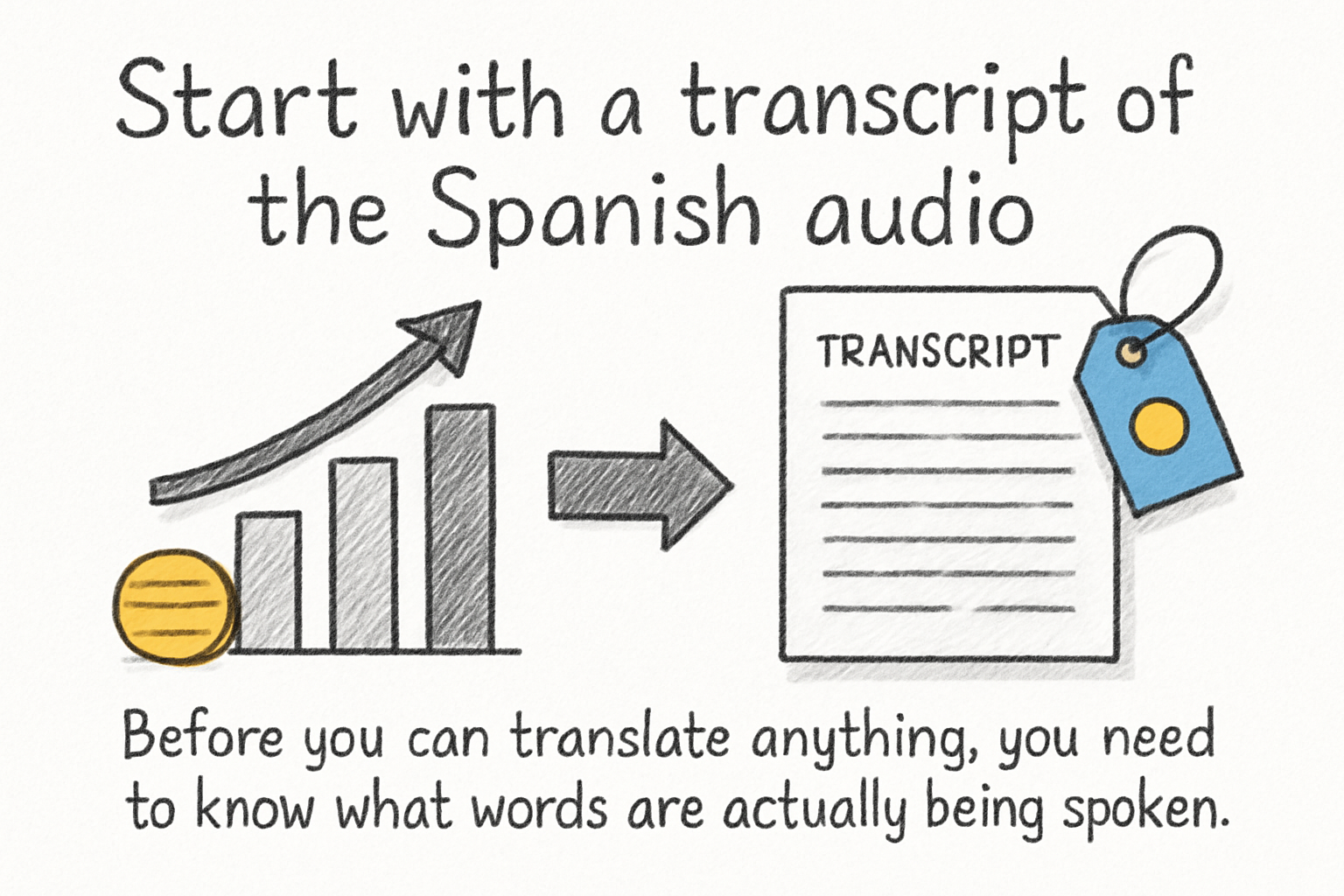
Before you can translate anything, you need to know what words are actually being spoken. That means getting a transcript of the Spanish audio first. Think of the transcript as the foundation. Without it, you're just guessing.
Some video platforms do this automatically. YouTube, for example, generates auto-captions for videos in many languages, including Spanish. If the video is on YouTube, click the three dots under the video, select 'Open transcript,' and you'll see a time-stamped list of everything being said. It's not always perfect, but it's a solid starting point. If you want to learn more about the transcription process in general, our article on how to write a transcript is worth a read.
If the video isn't on YouTube, you'll need to extract the audio first and run it through a transcription tool. Tools like Whisper, Otter.ai, or even Google's speech-to-text can handle Spanish audio pretty well. Once you have the Spanish text written out, you're ready to move to the actual translation step. It sounds like extra work, but getting a clean transcript first makes everything else a lot smoother.
I personally think skipping the transcript step is where most people go wrong. They try to jump straight to translation without a clean text source, and then the output ends up being a mess. Taking ten extra minutes to clean up your transcript saves you a lot of headaches later on.
How to actually translate the content to English
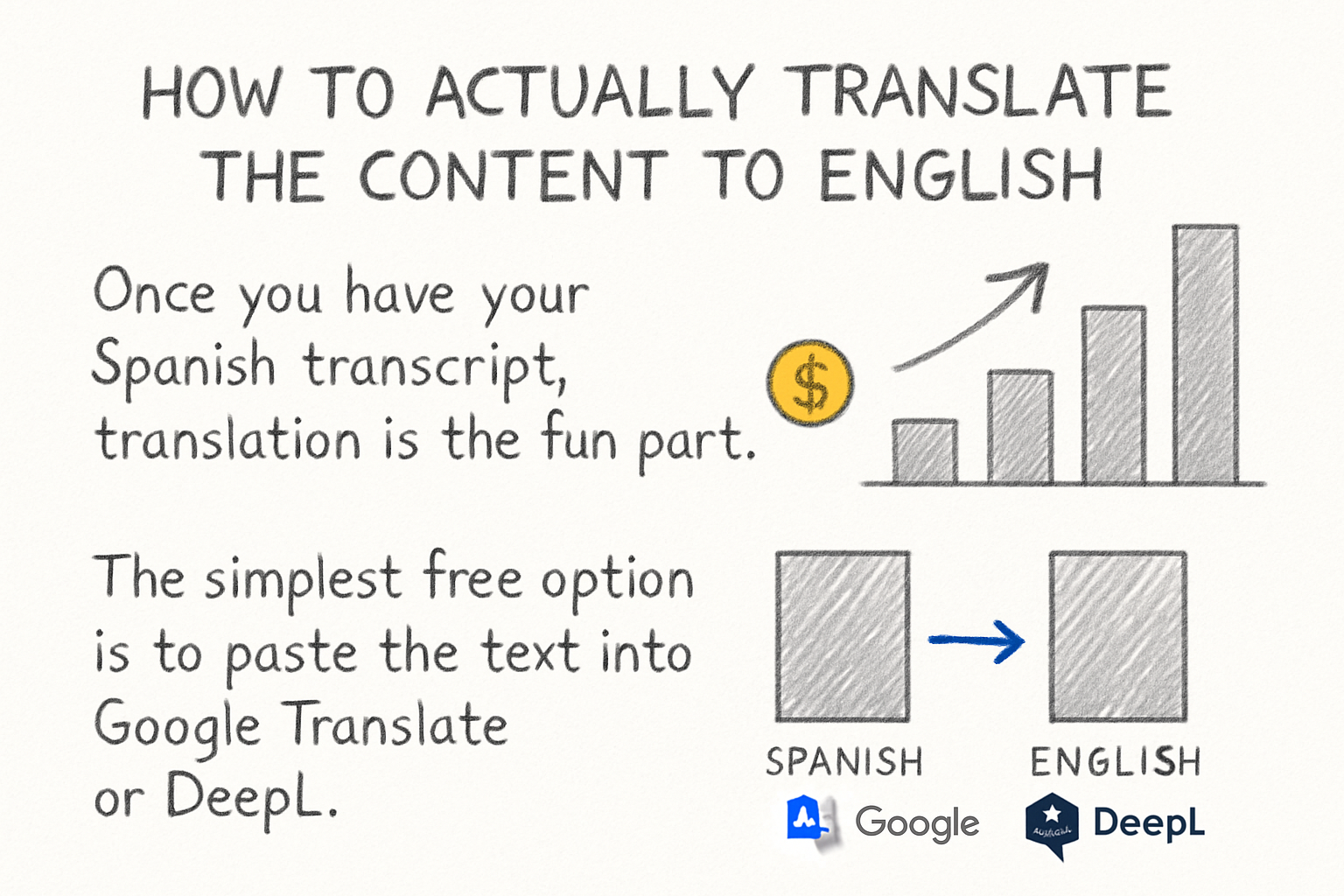
Once you have your Spanish transcript, translation is the fun part. The simplest free option is to paste the text into Google Translate or DeepL. DeepL tends to handle nuanced language better, especially for longer sentences or regional Spanish dialects. Google Translate works fine for straightforward content. Neither one is perfect, but both are good enough for most casual use cases.
If you want something more polished, you can use an AI writing tool to clean up the translated text after running it through a translator. Just paste the rough translation in and ask it to make the text flow naturally in English. This is especially helpful if the original Spanish had slang, humor, or cultural references that didn't translate cleanly.
For content creators who want English subtitles added directly to the video, the process takes one more step. You'll take your translated English text, format it as a subtitle file (usually SRT format), and upload it to your video. We've covered how to add subtitles in detail before, so check out our guide on adding subtitles to YouTube videos if that's what you're going for. It's pretty straightforward once you have the translated text ready.
One thing worth knowing: timing matters a lot with subtitles. The translated English text will sometimes be longer or shorter than the original Spanish, so you may need to adjust your subtitle timing so it still syncs with what's happening on screen. Most subtitle editors let you do this manually.
Re-dubbing the video in English (and when it makes sense)
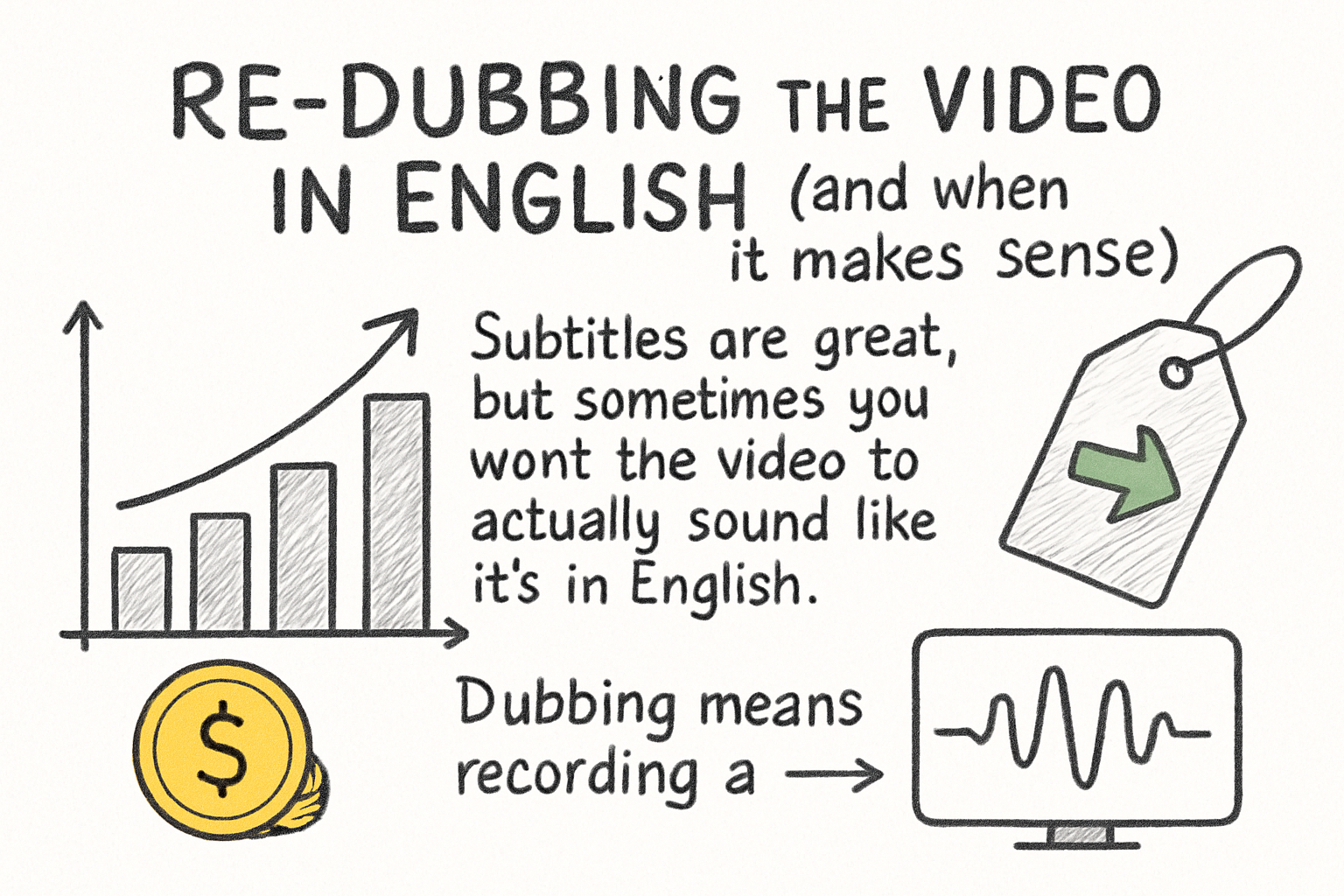
Subtitles are great, but sometimes you want the video to actually sound like it's in English. That's where dubbing comes in. Dubbing means recording a new voiceover in English that replaces the original Spanish audio. This used to require a full studio setup, but these days you can do a basic dub from your laptop.
Here's how it works in simple terms. You take your translated English script, record yourself reading it (or use a text-to-speech tool), and then swap out the original audio track. To get the audio off the video in the first place, you can follow the steps in our post on how to get audio off a video. Once the original audio is separated, you replace it with your English recording using any basic video editor. If you've never recorded a voiceover before, our beginner-friendly guide on how to do a voice over walks through the whole thing.
I remember helping my neighbor do this for a cooking video her aunt sent from Colombia. We pulled the audio, ran the transcript through DeepL, recorded a rough English dub on a USB mic, and had it done in about an hour. Was it Hollywood quality? No. But she could actually follow along with the recipe, which was the whole point.
Dubbing is more work than subtitles, so it really only makes sense if your audience needs to hear the English rather than just read it. Think about accessibility, older viewers, or situations where the viewer can't look at the screen while listening. If your goal is just personal understanding, subtitles will almost always be the faster and easier path.
Ready to take the next step?
Translating a Spanish video to English doesn't have to be complicated. Whether you're going the subtitle route or trying a full dub, the steps are manageable for pretty much anyone. If you try any of these methods, drop a comment below and let us know how it went. And if you're looking for more tools to help with video creation, editing, and translation, check out Cliptude to see what's available. We're always adding new features to make this kind of work faster and easier for creators and everyday users alike.