How to Attach a Video to an Email (Without the Headaches)


You've filmed the perfect video. Maybe it's a quick tutorial for a coworker, a funny clip for grandma, or a project update for a client. Then you open your email, try to attach the file, and boom. The thing is too big, the upload fails, or it just never arrives. Sound familiar? You're not alone, and this is way more common than people realize.
A lot of you have asked about this exact problem, and honestly, it makes sense why it's so confusing. Email wasn't really built to carry video files. Most email services cap attachments at somewhere between 10MB and 25MB. A one-minute video can easily blow past that. So what do you do when you need to get that video to someone's inbox without losing your mind?
The good news is there are a few solid ways to handle this, and once you know the options, it stops feeling like such a big deal. Whether your file is slightly too big or way too big, there's a fix that'll work for you. Let's walk through it.
Why email chokes on video files
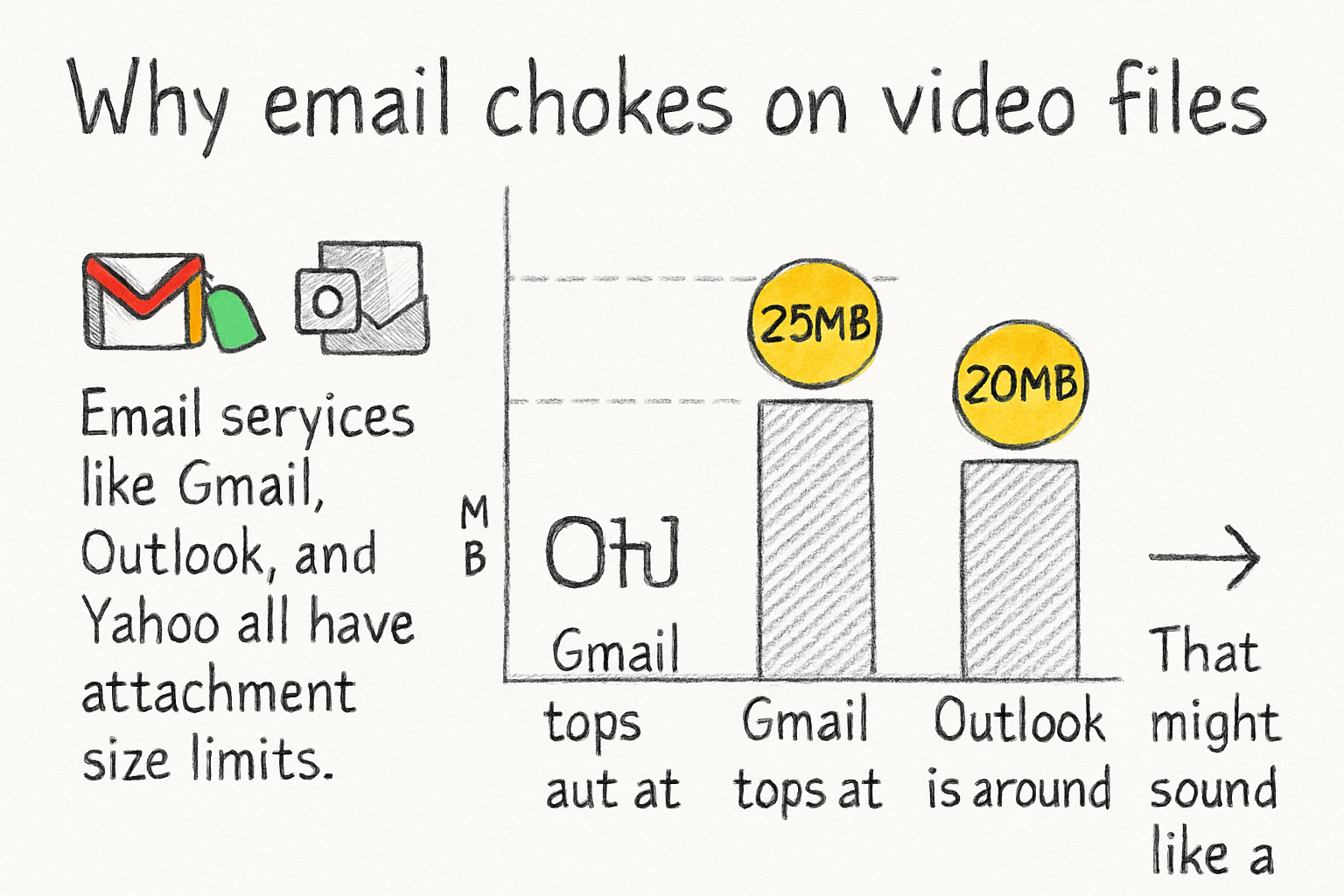
Email services like Gmail, Outlook, and Yahoo all have attachment size limits. Gmail tops out at 25MB. Outlook is around 20MB. That might sound like a lot until you realize a short 1080p video clip can be 100MB or more. Even a 30-second screen recording can push past those limits without you even trying.
The format of your video matters too. A .MOV file from an iPhone tends to be much larger than the same video saved as an MP4. That's just how the codecs work. If you're regularly sending videos and hitting walls, the format could be part of the problem.
So what happens when the file is too big? Most email clients will just reject it. Some will warn you before you try to send. Others will let you click send, then bounce the email back hours later with a confusing error message. Either way, the person you're trying to reach never gets it.
The fix starts with understanding that you've basically got two paths forward. You can shrink the video so it fits within the limit, or you can skip the attachment entirely and share a link instead. Both work. Which one makes more sense depends on the situation.
How to shrink your video before sending
Compressing a video sounds technical, but it really just means making the file smaller without making the video look terrible. There are tools out there that do this pretty well, and some are completely free. I personally think compression is the most underrated skill for anyone who works with video regularly, because it solves so many problems at once.
One time I had to send a 10-minute training video to a team of about 15 people, all through email. The original file was nearly 800MB. After compressing it, I got it down to under 20MB and it still looked crisp enough for everyone to follow along. That one trick saved me from having to set up a whole file-sharing situation.
If you're working with MP4 files, there are some really practical options covered in this guide to compressing MP4 videos that walks you through quick methods anyone can follow. Mac users have a few extra built-in options too, and you can read about those in this complete guide to compressing video on Mac.
If your video is a .MOV file, the process is a little different. That format holds onto a lot of extra data by default. This guide on how to compress a MOV file without losing quality breaks it down in a way that's easy to follow. After you compress, just attach the file the normal way and you should be good to go.
When to skip the attachment and send a link instead
Sometimes the video is just too long or too high-quality to compress down to a reasonable size. In those cases, attaching the file directly isn't really the right move anyway. The better option is to upload the video somewhere and send a link in your email instead.
Google Drive, Dropbox, and WeTransfer are three of the most common tools people use for this. You upload the video, set the sharing settings so the recipient can view it, and then paste the link into your email. The recipient clicks the link and watches the video in their browser. No massive download, no inbox errors, no drama.
YouTube is another option, especially if the video doesn't need to be private. You can upload it as an unlisted video, which means only people with the link can find it. We actually covered the basics of this in our step-by-step guide on how to post a YouTube video, so check that out if you're new to the platform.
One thing worth knowing is that you can't technically embed a video directly in an email so that it plays inside the message itself. Most email clients block that for security reasons. What you can do is take a screenshot of your video's thumbnail, insert that image into the email, and hyperlink the image to the video URL. It looks like a playable video but actually just opens the link when clicked. It's a small trick but it makes your email look a lot more polished.
Ready to take the next step?
Sending videos through email doesn't have to be a whole ordeal. You've got options, and now you know what they are. If you're working with video regularly and want tools that actually make the process easier, check out Cliptude and see what's available. Got a question about your specific situation, or a trick that's worked well for you? Drop it in the comments below. We read every one.